In online commerce, the photograph is the product. When a shopper browses Amazon, Shopify, eBay, or Walmart, they cannot physically touch the fabric, evaluate construction textures, or assess the genuine weight of the item. Every buying decision — and every costly return driven by expectation mismatch — hinges directly upon the visual fidelity of the catalog image. Listings featuring underexposed photos, inaccurate color casts, or murky off-white backdrops suffer depressed conversion rates and lose algorithmic visibility across major retail search engines.
Preparing product photography for e-commerce demands disciplined technical precision: standardized 1:1 square aspect ratios, correct white point anchoring at digital level 255, strict sRGB colorimetric consistency, and lightweight byte weights for rapid mobile page loads. In this comprehensive guide, we examine official marketplace specifications, color management strategies to lower e-commerce return rates, catalog post-production workflows, and how to process dozens of product shots simultaneously using the Batch Photo Editing tool on PhotoEditor.sbs, running 100% client-side with complete privacy and zero subscription fees.
1. Technical Standards Across Major E-Commerce Marketplaces
Global retail marketplaces enforce strict catalog photography guidelines to ensure uniform, trustworthy shopping experiences across merchant inventories. Three foundational rules govern the sector:
- Pure White or Clean Neutral Background: Primary hero images on Amazon and Google Shopping mandate pure RGB 255, 255, 255 white backdrops. On eBay and Etsy, dingy, gray, or uneven backgrounds demote listing visibility within internal algorithmic search rankings.
- Interactive Zoom Resolution: Most retail platforms require a minimum of 1000 × 1000 pixels to activate hover-to-zoom magnification loupe functionality. The industry sweet spot spans between 1200 × 1200 and 1600 × 1600 pixels. Resolutions exceeding 2000 pixels unnecessarily bloat byte payloads without improving perceived fidelity on mobile smartphone screens.
- Frame Occupancy Ratios: The featured product should occupy between 80% and 85% of the total canvas area, maintaining a symmetrical 15% perimeter breathing buffer so packaging and apparel do not appear cramped against product grid borders.
2. Commercial Colorimetry: How Accuracy Cuts Return Rates
E-commerce logistics research indicates that over 22% of apparel, footwear, and home décor product returns occur because "the color of the received item did not match the website photo." This friction stems from two widespread post-production errors:
Mismatched Color Profiles: Capturing product assets in Adobe RGB and saving them without converting to sRGB causes consumer browsers and mobile shopping apps to render chromatic coordinates with dull, desaturated tones. A shopper expecting a vibrant scarlet sweater receives a muted crimson garment.
The Delta-E (ΔE) Color Distance Metric: In commercial apparel and manufacturing industries, color fidelity is measured via the ΔE distance formula inside the CIELAB color space. A ΔE score below 2.0 is virtually imperceptible to the untrained human eye. When an uncalibrated camera sensor introduces ΔE deviations exceeding 5.0 across critical fashion pigments (such as navy blue, olive drab, or heather beige), shoppers instantly notice the color mismatch upon opening their packages at home.
Surgical Spectral HSL Tuning: To match your catalog photo to physical fabric swatches and bring color deviation below ΔE 2.0, avoid broad global temperature shifts — which inadvertently tint pure white backdrops blue or yellow. Instead, navigate to the HSL Color panel and isolate the product's specific spectral band (such as fine-tuning Orange or Red Hue and Saturation) until visual parity is achieved while preserving a pristine achromatic background.
3. White Point Anchoring and Zonal Exposure Correction
When photographing dark or colorful products against a white studio background, camera light meters are frequently deceived by the expansive bright area, intentionally underexposing the frame. The result is a drab gray background and an underexposed silhouette lacking surface texture.
Beyond exposure, optical focal length directly impacts customer return rates. Standard smartphone primary cameras utilize wide-angle optics (equivalent to 24mm or 26mm on full-frame sensors). Shooting a small product — such as a wristwatch, perfume bottle, or running shoe — up close introduces severe barrel distortion: the center bulges forward while peripheral edges bend backward. Customers receive an item whose physical proportions look noticeably distorted compared to the online image.
The correct commercial studio technique is stepping back 1.5 to 2 meters (using a smartphone's 2x or 3x telephoto camera or a 50mm to 85mm prime lens on dedicated cameras) and executing final tight framing digitally in the editor. Telephoto perspective compression keeps parallel lines strictly rectilinear and true to life.
To calibrate the background and zonal exposure cleanly without heavy desktop software:
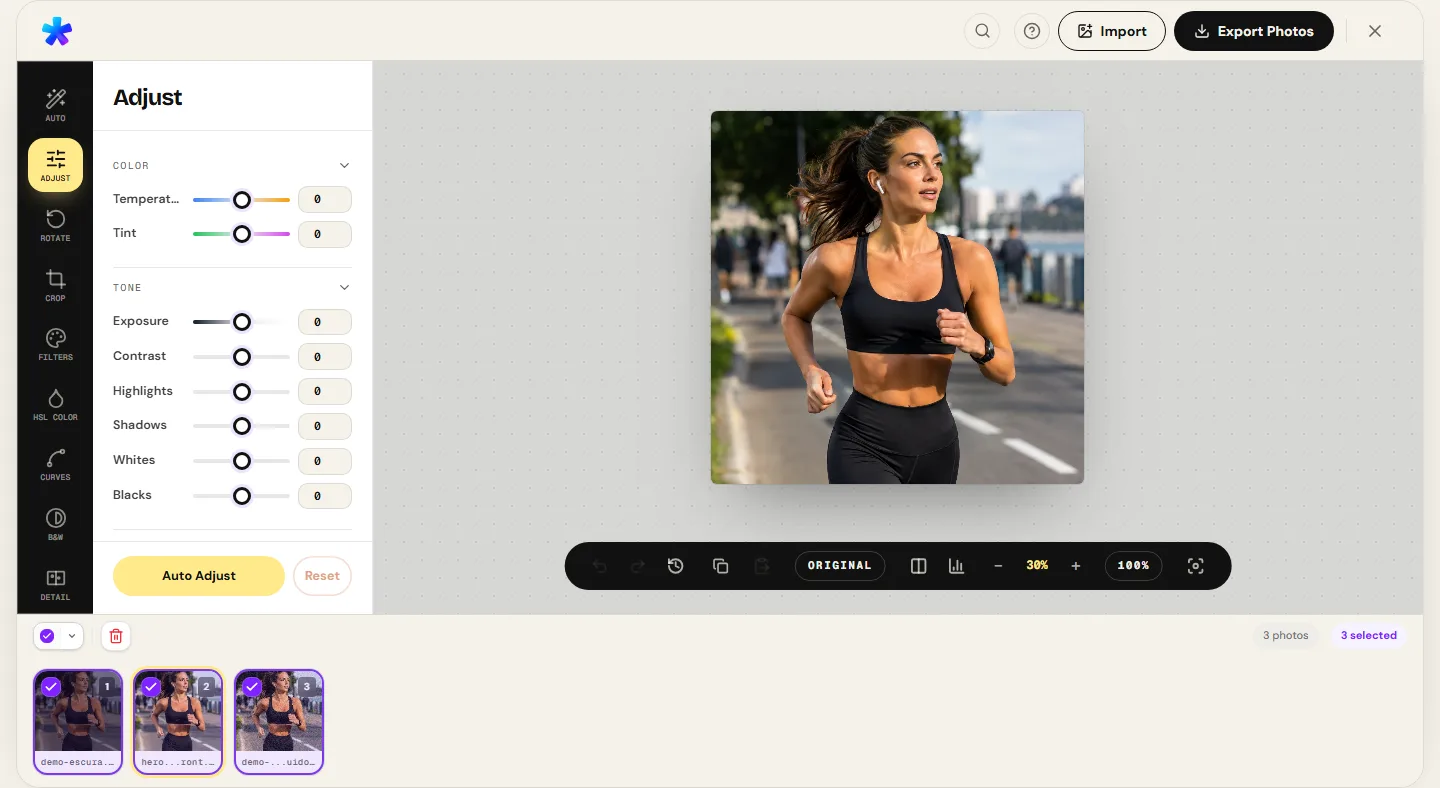
- Load your image into the Adjust Photo tool and elevate Exposure by +0.3 to +0.7 EV until tactile material textures become legible.
- Next, open the Curves and Levels panel. Slide the White Point marker slightly leftward (for instance, from 255 to 240). This burns away off-white gray background casts into pure 255 white without blowing out product midtones.
- If contact shadows underneath the item appear excessively dark or harsh, use white foam core bounce boards on the sides during shooting and gently raise the Shadows slider in the editor to retain three-dimensional grounding.
4. Catalog Geometry: 1:1 Aspect Ratios and Breathing Margins
Mixing portrait 3:4 images with widescreen 16:9 shots fragments visual rhythm across retail storefronts. Inside the Crop Photo module, select the 1:1 (Square) aspect ratio preset.
Center the item along the compositional grid intersection points. Ensure shoes, bottles, or cosmetic packaging maintain consistent top and bottom margins across the entire collection. This geometric discipline projects brand authority, lifting customer conversion rates.
5. Batch Workflow: Processing 50 Products in Minutes
Retouching a 50-item product shoot individually drains hours of repetitive labor. On PhotoEditor.sbs, the Batch Photo Editing pipeline streamlines catalog production:
- Ingest Queue Assets: Drag and drop your 50 product captures directly into your browser window.
- Calibrate the Lead Frame: Dial in the 1:1 square crop, exposure compensation, and white balance on the first shot captured under studio lights.
- Propagate Shared Recipes: Click Apply to All to duplicate the adjustments across the entire queue simultaneously.
- SEO-Friendly Sequential Naming: In the export dialog, set the token pattern to
mens-running-shoes-{n}. Every file exports asmens-running-shoes-01.jpg,mens-running-shoes-02.jpg, optimizing discoverability across Google Images and retail search algorithms. - Target File Size Ceilings: Enable a 250 KB size budget to guarantee catalog pages load instantly on mobile networks.
6. Comparative Marketplace Requirements Table
The table below summarizes official photographic specifications across leading commercial platforms:
| Sales Channel | Ideal Aspect Ratio & Resolution | Recommended Background | Format & Size Ceiling |
|---|---|---|---|
| Amazon Marketplace | 1:1 Square (1600 × 1600 px) | Strictly pure white (RGB 255, 255, 255) on primary hero image | JPEG in sRGB color space, under 500 KB for responsive zoom loupe |
| Shopify / Independent Store | 1:1 or 4:5 Vertical (1200 × 1200 px) | Neutral gray, clean white, or stylized brand background | WEBP export (when the browser supports it) for fast Core Web Vitals |
| eBay & Regional Marketplaces | 1:1 Square (1200 × 1200 px) | Clean solid backdrop free from distracting room clutter | JPEG at 88% quality, recommended under 350 KB |
| Google Shopping / Merchant Center | 1:1 Square (1000 × 1000 px minimum) | Solid plain background without promotional text or watermarks | JPEG at 85% preserving true physical product colors |
7. Technical Boundaries: Studio Photography vs. Background Removal
Transparency regarding our software capabilities is a foundational ethical standard at PhotoEditor.sbs. We maintain clear boundaries regarding catalog production:
What PhotoEditor.sbs handles with precision: Tonal exposure balancing, burning off-white casts into clean 255 white via Levels, selective HSL fabric color matching, square 1:1 compositional cropping, batch token renaming, and lightweight JPEG or WEBP export (when the browser supports it).
What PhotoEditor.sbs does NOT do: The editor does not feature generative artificial algorithms to automatically cut out products from busy domestic backgrounds and replace them with synthetic backdrops. If a product was photographed against a cluttered room or textured carpet, PhotoEditor.sbs will not magically isolate the silhouette — for commercial-grade catalog results, we strongly advise capturing original assets against white seamless paper or foam boards under diffuse illumination.
Prepare Product Photo Batch Now
Prepare Product Photo Batch Now8. Frequently Asked Questions
Frequently asked questions
What is the best simple lighting setup for shooting e-commerce product photos?
Position two diffuse light sources at 45-degree angles to the product (daylight-balanced 5500K LED bulbs with diffusion panels or umbrellas) and place the item on a matte white poster board. This setup eliminates harsh glare and deep shadows.
Why do my product colors look different on mobile phones compared to my laptop?
This discrepancy usually occurs when files are saved in non-standard color spaces like Adobe RGB. PhotoEditor.sbs renders all outputs natively in standard sRGB, ensuring chromatic uniformity across laptops, tablets, and smartphones.
How do I achieve a pure 100% white background without washing out my product?
Inside the Curves and Levels tool, gently drag the White Point slider leftward until the background reaches digital level 255. If the product edges begin to clip, use the Highlights slider with subtle negative compensation to maintain edge contrast.
Can I upload WebP images directly to Amazon or Google Shopping?
Most traditional marketplace listing ingestion pipelines strictly require JPEG format with 88% quality. For self-hosted Shopify or WooCommerce stores, images in WebP deliver rapid loading speeds.
Does PhotoEditor.sbs add watermarks to exported catalog photography?
No. PhotoEditor.sbs never inserts watermarks, logos, or brand marks into your exports. Your product assets remain completely clean and compliant with Amazon and Google Shopping policies.
How many product captures can I edit at once in the batch tool?
You can comfortably queue 30 to 80 high-resolution photos per session, applying square crops and lighting recipes across the entire batch with a single click.
How should I name product image files to improve Google Image search rankings?
Use descriptive keyword tokens during batch export, such as '{name}-{n}'. Name your file with the specific brand and model (e.g., 'mens-waterproof-hiking-boots-01.jpg') instead of generic camera filenames like 'IMG_4829.jpg'.
Are there any subscription fees to export high-resolution catalog photos?
No. All modules — including batch processing, Levels tuning, square cropping, and full-resolution exports — are 100% free and run entirely inside your browser with total data privacy.