( Free · in the browser · no sign-up )
Resize photo in pixels in your browser.
Width. Height. Lock aspect ratio. Social presets. Prevent upscale. Batch with ZIP.
Adjust image resolution in pixels for social media, websites, and official forms without distortion, featuring individual or batch ZIP export.
You can also drag and drop one or multiple images in this area.•Accepted inputs: JPEG, PNG, WEBP, AVIF, HEIC, TIFF, GIF and BMP (HEIC and TIFF are converted on import). Export as JPEG, PNG and AVIF, and as WEBP when the browser supports that encoding.
Image editing runs in the browser. The site can still make technical requests and, subject to your consent, load measurement or advertising. Read the Privacy Policy.
- 01No installation
- 02In-browser editing
- 03Preview before export
- 04No sign-up
( How it works )
How to resize photos in 3 simple steps
- ( 01 / 03 )
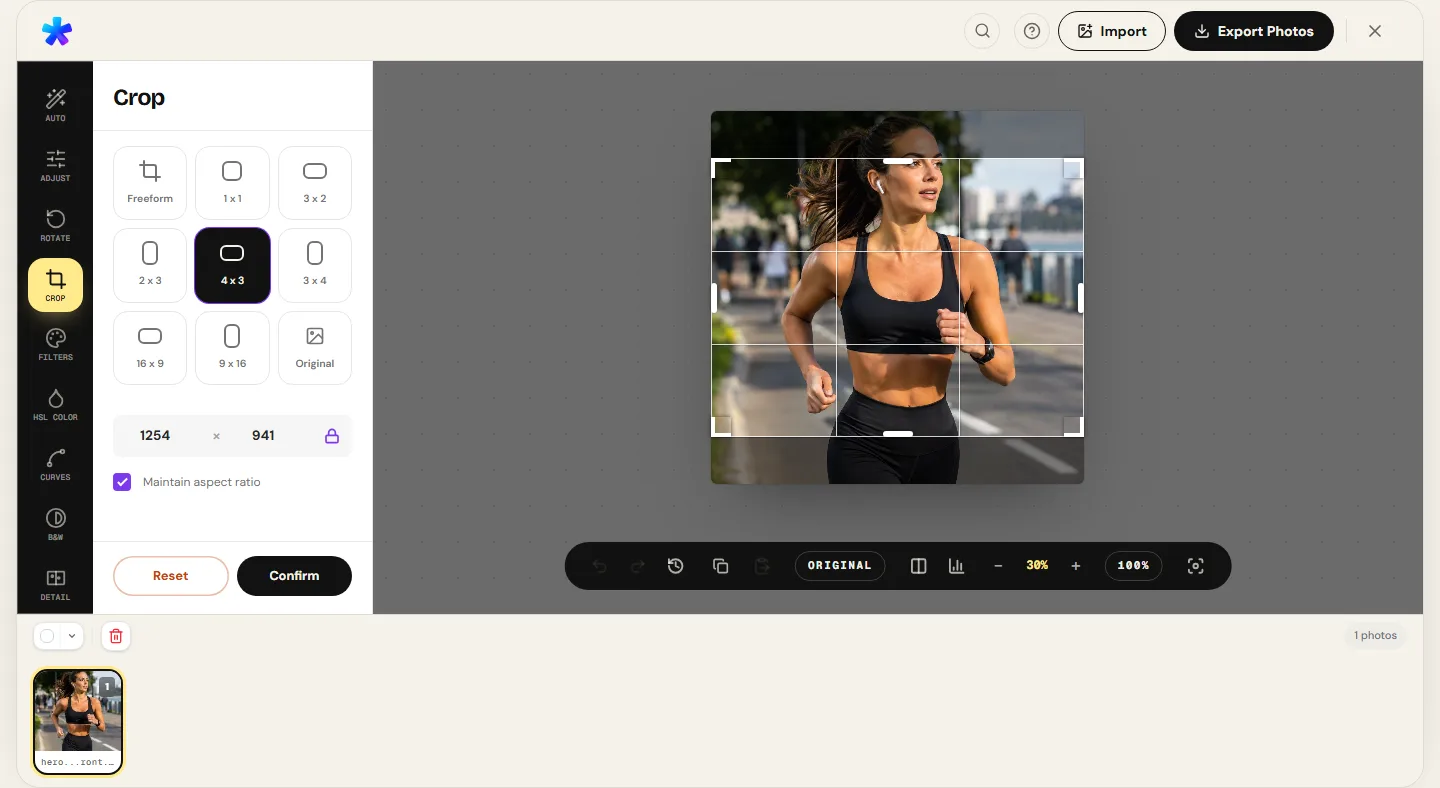
1. 1. Open your images
Drag and drop one or multiple photos into the editor. Images are decoded locally in browser memory without sending data to servers.
- ( 02 / 03 )
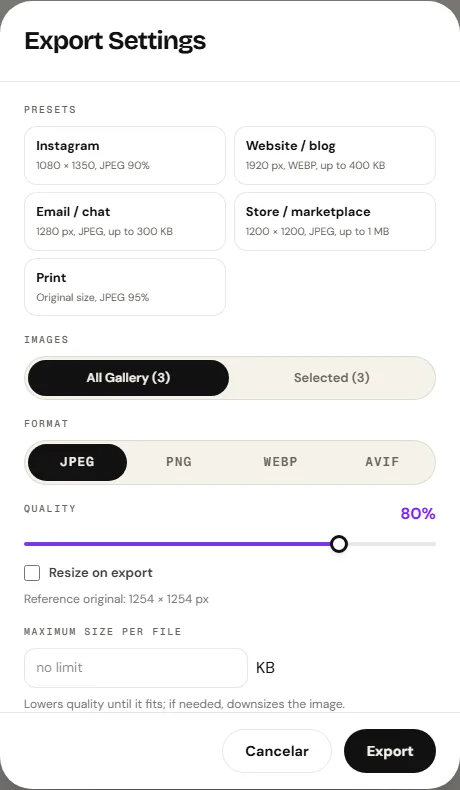
2. 2. Set pixel dimensions
Open the export dialog and toggle resizing. Specify your target maximum width or height in pixels, or choose a preset like 1080×1080.
- ( 03 / 03 )
3. 3. Export the resized files
Select your desired output format (JPEG, PNG, AVIF, or WEBP when the browser supports it) and download single images or a combined batch ZIP.
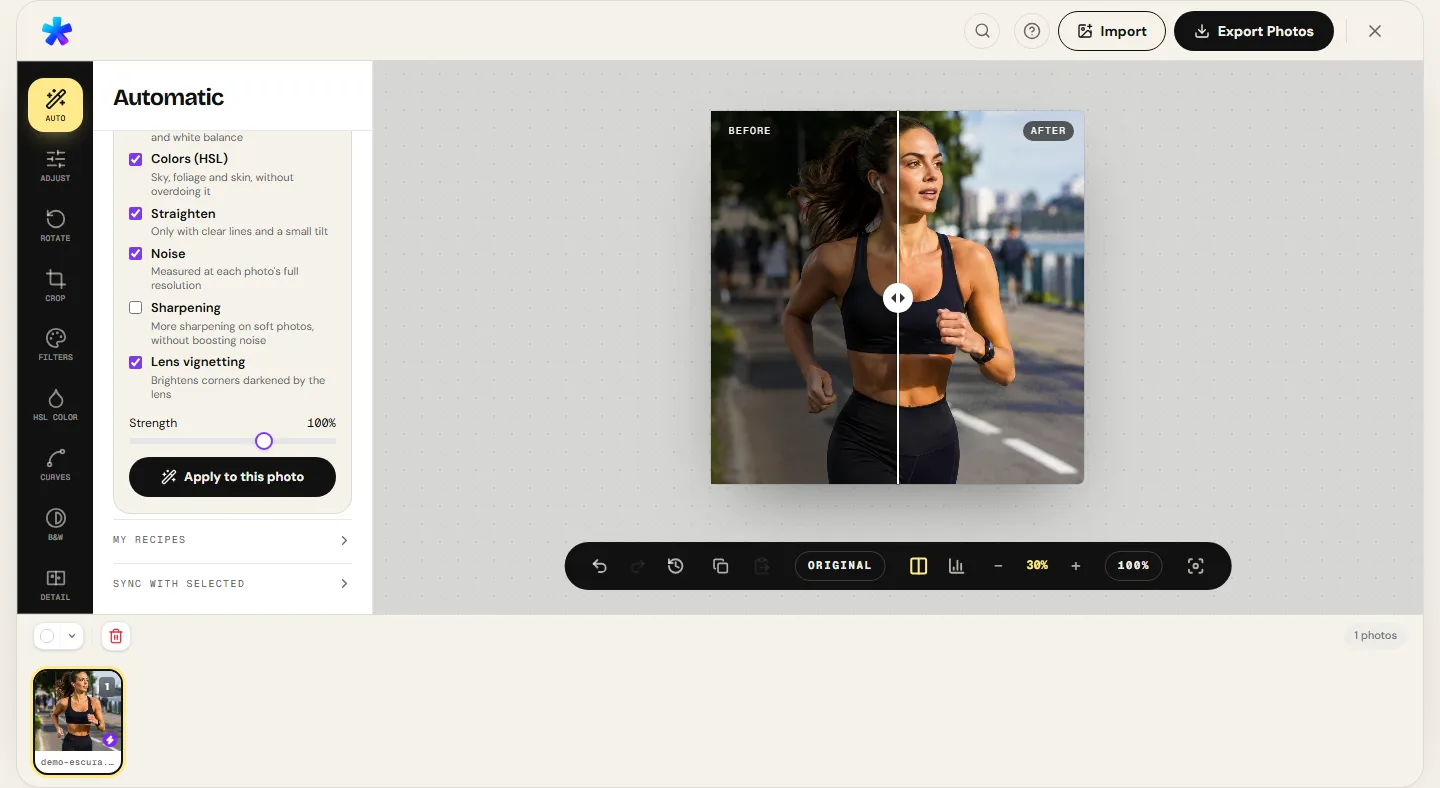
( The interface )
Current tool interface
( What it does )
Resize capabilities
- 01
Locked proportional scaling
Changing width or height automatically recalculates the other dimension, preventing stretching or unnatural squishing.
- 02
Prevent-upscale protection
An explicit toggle prevents images smaller than target dimensions from being artificially enlarged, preserving original clarity.
- 03
Batch processing with ZIP bundle
Resize dozens of photos in a single pass with identical bounds and download them all organized in a single ZIP file.
( What people use it for )
When resizing is essential
- ( 01 )
Social media publishing
Resize high-resolution captures to 1080×1080 square or 1080×1350 portrait to avoid heavy platform compression.
- ( 02 )
Website and e-commerce optimization
Scale down 24 MP camera shots to 1200 px or 1920 px widths to speed up page load times.
- ( 03 )
Email attachments and form submissions
Meet file dimensions requirements for portals that reject images over 2048 pixels wide.
- ( 04 )
Catalog standardization
Apply identical width constraints across an entire product photo set in one batch action.
( Questions? Answered )
Frequently asked questions
What is the difference between cropping and resizing?
Cropping cuts away outer edges of an image to change framing and composition. Resizing scales the entire image by changing the total number of pixels without discarding any visible content.
Does downscaling cause quality loss?
Downscaling blends neighboring pixels using bicubic filtering. Far from degrading perceived sharpness, it often increases apparent crispness by condensing fine detail into a denser grid.
Can I upscale a low-resolution photo?
You can enter larger dimensions if you disable the prevent-upscale option, but algorithms cannot invent missing optical detail; the result will look softer.
Are my photos sent to a processing server during resizing?
Pixel processing runs in the browser. Normal site requests and consented services are documented in the Privacy Policy.
Which formats can I select for the resized output?
The export dialog offers JPEG, PNG, and AVIF, and includes WEBP when the browser supports that encoding.
( In depth )
Principles of Digital Image Resolution, Resampling, and Geometry
Resizing an image alters the spatial density of its raster pixel grid. Understanding resampling algorithms and aspect ratio geometry ensures clean scaling without blurriness or anatomical distortion.
Pixel resampling mechanics: downscaling and interpolation
Every raster digital photograph exists as a two-dimensional matrix of picture elements, or pixels. Each pixel stores numeric intensity values for red, green, blue, and optional alpha channels. Resizing an image alters the density and total count of these grid points through mathematical resampling.
When downscaling a high-resolution photograph — such as reducing a 24-megapixel 6000×4000 capture to 1920×1280 for web delivery — the engine computes weighted color averages across local pixel clusters. Modern browser Canvas engines employ bicubic interpolation filters, evaluating cubic polynomial splines across a 4×4 grid of neighboring pixels. This eliminates aliasing artifacts (such as jagged diagonal edges) while preserving smooth tonal transitions and fine textures.
Conversely, upscaling requires an algorithm to infer pixel values where no sensor data was ever recorded. While bicubic interpolation yields smooth gradients, it cannot reconstruct genuine high-frequency detail. This is why PhotoEditor includes an explicit prevent-upscale safeguard, preventing small source images from unintentional softening.
Aspect ratio geometry and distortion prevention
An image's aspect ratio represents the proportional relationship between width and height, calculated as width divided by height (W / H). Digital SLR and mirrorless sensors natively capture in a 3:2 ratio, whereas smartphones default to 4:3 or 16:9, and social platforms prioritize 1:1 square or 4:5 vertical frames.
With proportional locking enabled, setting one dimension dynamically calculates the other via the ratio H_new = W_new × (H_orig / W_orig). This ensures geometric fidelity: round objects remain circular, and human portraits maintain natural anatomical proportions without horizontal distortion.
When adapting a composition to a fundamentally different aspect ratio without warping, the proper photographic workflow is to crop to the desired framing first, and then resize the cropped area to the final target pixel dimensions.
Memory consumption and HTML5 Canvas architecture
Client-side image processing operates directly within available device RAM allocated to the browser tab. Upon import, compressed formats (such as JPEG, PNG, or HEIC) are decoded into uncompressed 32-bit RGBA byte arrays, consuming exactly 4 bytes per pixel.
A standard 24-megapixel image requires roughly 96 megabytes of raw memory. Standard HTML5 Canvas implementations across Blink, Gecko, and WebKit support maximum canvas dimensions up to 16,384×16,384 pixels, safely accommodating resolutions up to 268 megapixels.
To prevent memory bloat and browser crashes on memory-constrained devices, the pipeline promptly releases object URLs via URL.revokeObjectURL and cleans up temporary offscreen contexts once export finishes.
( Keep going )
Continue with the right workflow
- ( 01 )Crop photoRefine framing and remove distracting outer areas before resizing.Read
- ( 02 )Compress photoReduce KB file size without changing pixel dimensions.Read
- ( 03 )Batch editingApply adjustments and resize across multiple photos with ZIP export.Read
- ( 04 )Compare formatsInspect real file size and pixel differences across JPEG, PNG, and WEBP.Read
( Ready when you are )
Ready to resize your photos?
Open an image, set your target width or height in pixels, and inspect the preview before saving.