( Free · in the browser · no sign-up )
Compress photo to target KB online.
Target KB size. Under 100 KB. Binary quality search. JPEG and WEBP. For forms & email.
Need to reduce an image file size for an online form, email attachment, or website? Set a target KB ceiling or fine-tune compression quality without sending your data to servers.
You can also drag and drop one or multiple images in this area.•Accepted inputs: JPEG, PNG, WEBP, AVIF, HEIC, TIFF, GIF and BMP (HEIC and TIFF are converted on import). Export as JPEG, PNG and AVIF, and as WEBP when the browser supports that encoding.
Image editing runs in the browser. The site can still make technical requests and, subject to your consent, load measurement or advertising. Read the Privacy Policy.
- 01No installation
- 02In-browser editing
- 03Preview before export
- 04No sign-up
( How it works )
How to compress photos in 3 steps
- ( 01 / 03 )
1. 1. Open your image
Drag and drop a photo in JPEG, PNG, WEBP, or HEIC format. The file opens locally in your browser memory.

- ( 02 / 03 )
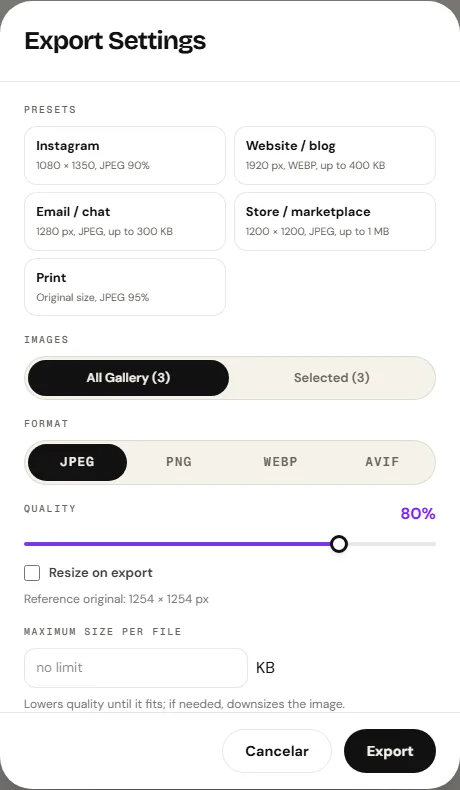
2. 2. Set a maximum KB size or quality
In the export dialog, enter a target size in KB (such as 100 KB or 200 KB) or move the quality slider to preview estimated file size.
- ( 03 / 03 )
3. 3. Download optimized file
Click download to save the compressed photo to your device, or download a combined ZIP if working with multiple images.
( The interface )
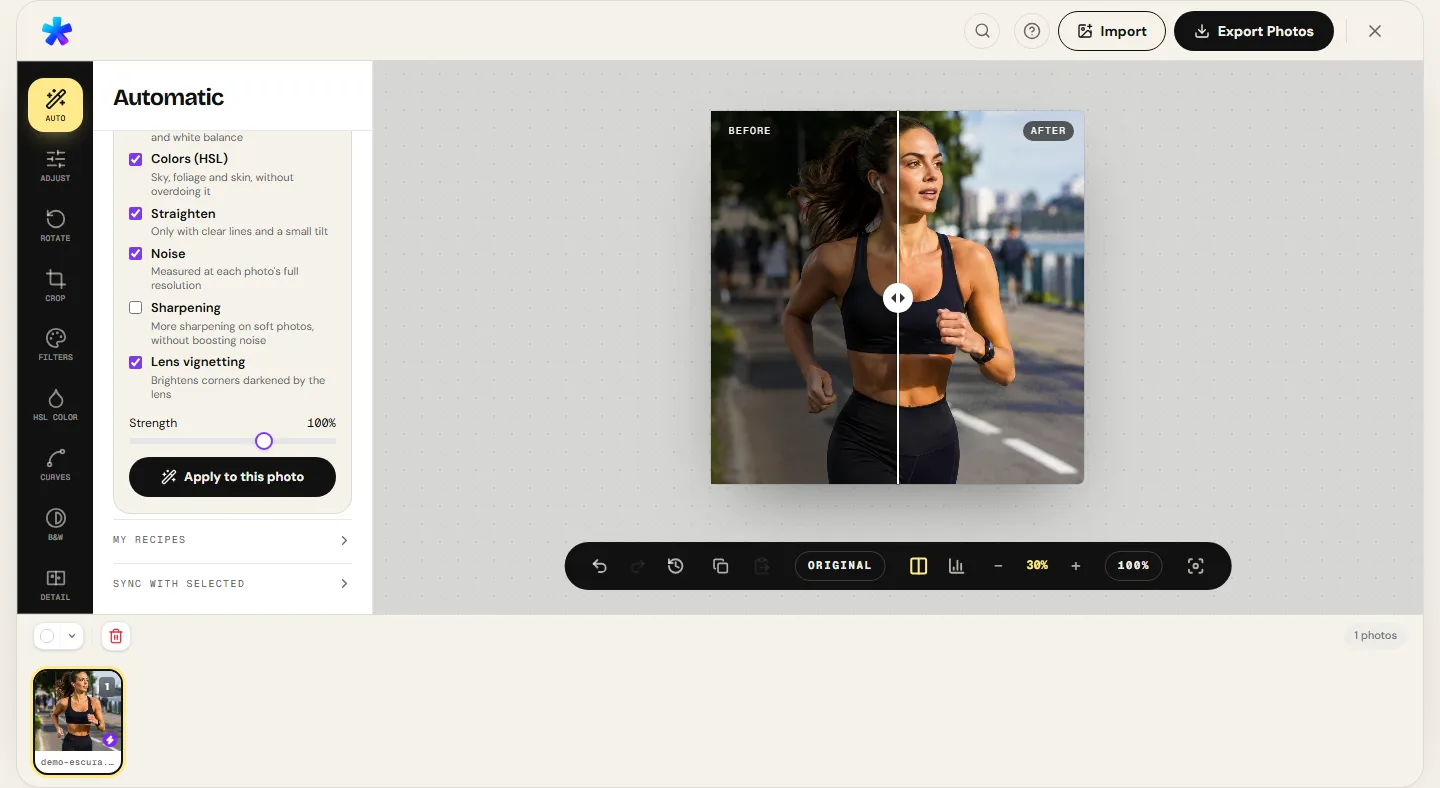
Current tool interface
( What it does )
Compression features
- 01
Binary search for exact target KB
When you specify a target KB ceiling, an iterative binary search tests quantization levels until it finds the highest quality that stays beneath your limit.
- 02
Optional proportional resizing
For massive multi-megapixel photos where JPEG compression alone cannot reach tiny quotas (like 50 KB), downscale width proportionally to reach the target.
- 03
Pre-export size estimation
The export interface calculates real-time byte estimates as you adjust quality, dimensions, or container format before downloading.
( What people use it for )
Common compression scenarios
- ( 01 )
Government and school application portals
Official document and headshot upload portals frequently enforce strict caps under 100 KB or 200 KB.
- ( 02 )
Email attachments
Corporate email servers block large message payloads; compressing photos ensures reliable inbox delivery.
- ( 03 )
Website and e-commerce page speed
Lighter images improve Google Core Web Vitals, accelerate load times, and save mobile visitor bandwidth.
- ( 04 )
Community forum and avatar uploads
Online discussion boards and platforms often restrict profile pictures to strict file size quotas.
( Questions? Answered )
Frequently asked questions
What is the difference between resizing and compressing?
Resizing changes the pixel dimensions (e.g., from 4000×3000 to 1600×1200). Compressing reduces the storage bytes needed per pixel without altering total pixel count.
How do I compress under 100 KB while preserving sharpness?
For high-resolution camera shots, first resize the width to 1200–1600 pixels. Then set JPEG quality to 75%–80% or enter 100 into the target KB field.
Does compressing photos upload my data to the internet?
Pixel processing runs in the browser. Normal site requests and consented services are documented in the Privacy Policy.
Can I compress multiple photos at once?
Yes. Add multiple images to the editor gallery, configure your export settings, and download all compressed files in a single ZIP archive.
Which formats yield the smallest file sizes?
AVIF offers the highest compression efficiency for photographic content, followed by WEBP (when the browser supports that encoding) and standard JPEG.
( In depth )
Digital image compression explained: JPEG, quantization, and kilobyte limits
Compressing images to strict kilobyte limits requires balancing quantization rates against pixel resolution. Understanding the underlying compression mathematics ensures your images hit target quotas without sacrificing perceived clarity.
What determines image file size in bytes
To compress an image effectively, you need to understand how raw graphic data is structured. A 12-megapixel photo contains 12 million individual light sensors' worth of pixels. If stored uncompressed in 24-bit RGB, that image would take approximately 36 megabytes (12,000,000 pixels × 3 bytes per pixel).
Web services cannot transmit multi-megabyte uncompressed bitmaps efficiently. Compression algorithms solve this problem through two categories: lossless and lossy.
Lossless formats (such as PNG) use statistical entropy reduction (like Deflate) to preserve 100% of the original numeric values. Lossy formats (like JPEG, WEBP, and AVIF) strategically discard visual data that the human visual cortex cannot readily distinguish.
The JPEG quantization matrix and human perception
JPEG exploits human visual system (HVS) characteristics: humans are keenly sensitive to subtle shifts in brightness (luminance), but significantly less sensitive to high-frequency spatial color variations (chrominance).
The algorithm converts RGB to YCbCr, divides the image into 8×8 pixel blocks, and applies the Discrete Cosine Transform (DCT) to convert spatial brightness into frequency coefficients.
The quality slider adjusts the quantization matrix. At 90% quality, high-frequency coefficients are lightly divided, preserving fine textures. At 50%, high frequencies round aggressively to zero, allowing Huffman coding to store the block in minimal bytes.
How binary search hits an exact KB target
Meeting an exact file size limit (such as 'maximum 150 KB') is tricky because JPEG encoding does not offer an inverse formula: you cannot calculate the exact quality number required to yield 150 KB from dimensions alone.
Final file size depends on image entropy: a smooth wall compresses into very few bytes, while a dense forest scene requires vastly more data to describe fine branch textures.
To solve this in your browser, PhotoEditor uses an automated binary search. Given a 150 KB limit, the algorithm tests encoding at a midpoint quality level, evaluates the resulting blob size, and narrows the quality interval until it finds the highest possible quality that remains strictly below your threshold.
( Keep going )
Continue with the right workflow
- ( 01 )Convert HEIC to JPGConvert iPhone camera photos to JPEG before applying custom compression.Read
- ( 02 )Batch editingCompress and resize photo galleries in one pass with ZIP download.Read
- ( 03 )Format comparisonReview measured file sizes and visual differences across JPEG, PNG, and WEBP.Read
- ( 04 )Help centerTroubleshooting tips for memory limits, browser support, and batch workflows.Read
( Ready when you are )
Compress your photos now
Drop your image into the workspace, choose your target KB size, and download the optimized file.