( Free · in the browser · no sign-up )
Convert HEIC to JPG in your browser.
iPhone photos to JPEG. Single or batch. Quality slider. No server upload. Open on Windows.
iPhone photos that won't open on Windows, Android, or upload forms? Convert HEIC files to universally compatible JPEG format with quality controls and batch ZIP download.
You can also drag and drop one or multiple images in this area.•Accepted inputs: JPEG, PNG, WEBP, AVIF, HEIC, TIFF, GIF and BMP (HEIC and TIFF are converted on import). Export as JPEG, PNG and AVIF, and as WEBP when the browser supports that encoding.
Image editing runs in the browser. The site can still make technical requests and, subject to your consent, load measurement or advertising. Read the Privacy Policy.


- 01No installation
- 02In-browser editing
- 03Preview before export
- 04No sign-up
( How it works )
How to convert HEIC photos to JPG in 3 steps
- ( 01 / 03 )
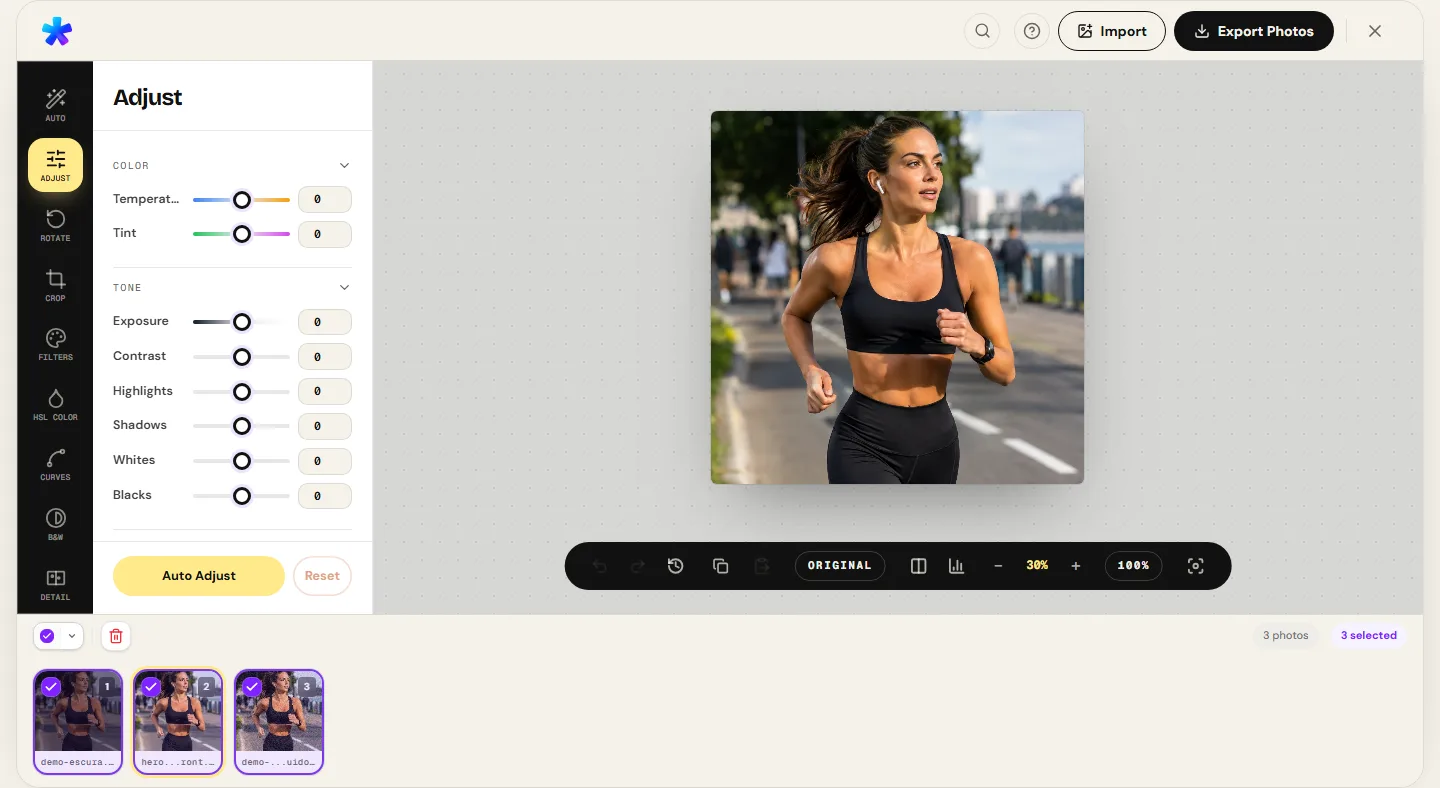
1. 1. Add your HEIC files
Drag and drop one or multiple .heic or .heif iPhone photos into the editor. Your browser decodes them locally (natively on Safari, or via WebAssembly in Chromium and Firefox).
- ( 02 / 03 )
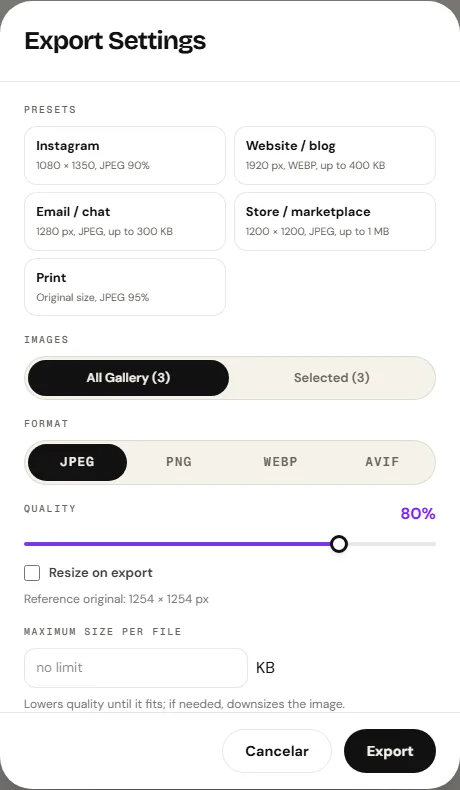
2. 2. Choose JPEG and quality
Open the export dialog and select JPEG. Adjust quality from 1% to 100%, set a maximum pixel dimension, or specify a file size ceiling in KB.
- ( 03 / 03 )
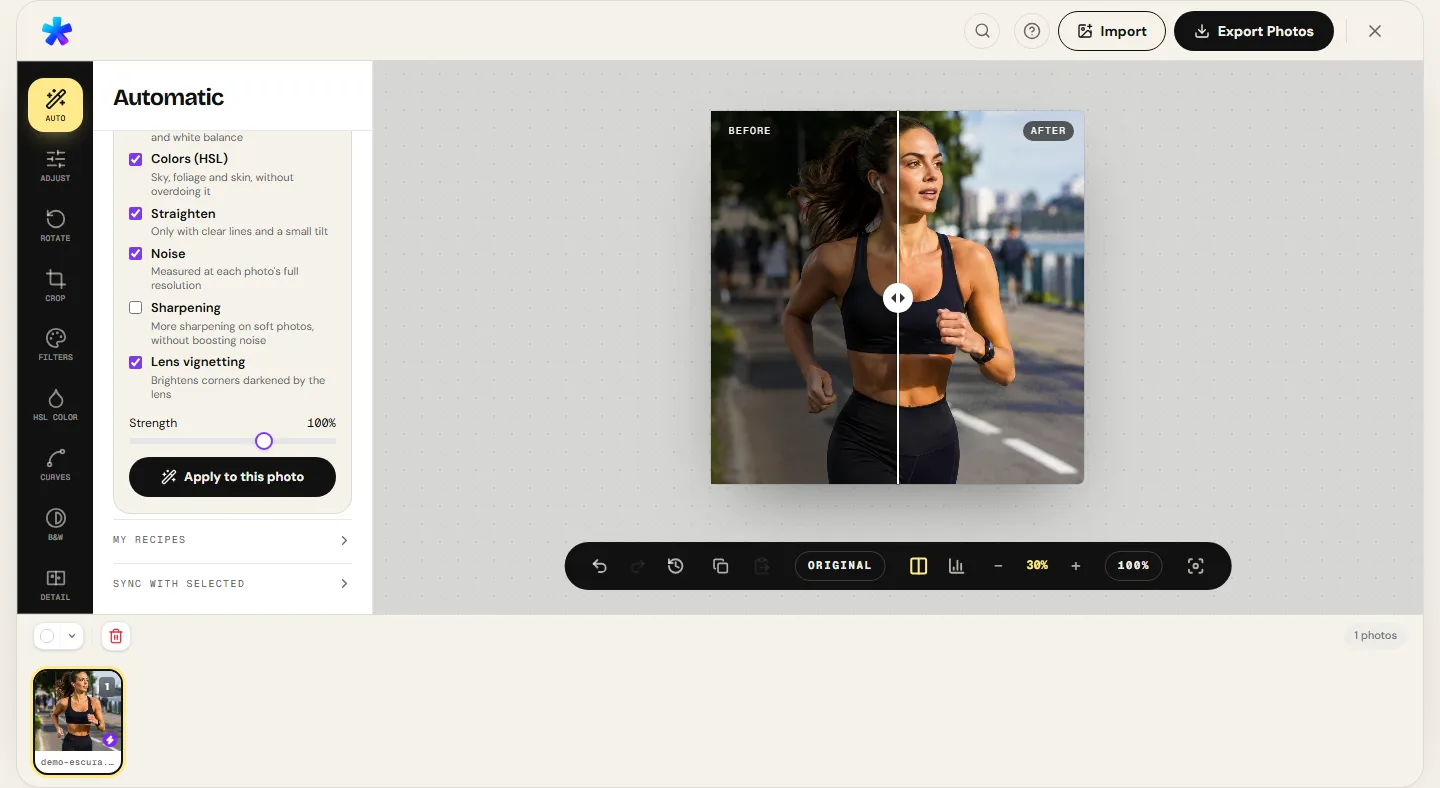
3. 3. Download converted photo or ZIP
For a single image, the .jpg file downloads immediately. For batches, the editor bundles all converted files into a single convenient ZIP archive.
( The interface )
Current tool interface
( What it does )
What this tool does
- 01
Modern in-browser decoding
Safari decodes HEIC natively; Chromium and Firefox load an on-demand WebAssembly build of libheif to convert HEIC data into standard pixels right on your device.
- 02
Batch conversion and ZIP export
Select dozens of iPhone photos at once. The editor processes each file sequentially and packages the results into a single ZIP file for download.
- 03
Quality and file size controls
Fine-tune the JPEG quality slider to balance clarity against file size, or specify an exact KB limit to satisfy strict online form requirements.
( What people use it for )
Common reasons to convert HEIC to JPG
- ( 01 )
Application forms and official portals
Government websites, passport applications, and university portals frequently reject .heic and require standard .jpg uploads.
- ( 02 )
Windows and Linux compatibility
Many Windows versions lack the HEIF codec out of the box, displaying blank thumbnails or unsupported file errors when transferring iPhone photos.
- ( 03 )
Commercial photo printing kiosks
Print shops and automated photo kiosks operate almost exclusively with standard sRGB JPEG files.
- ( 04 )
Sharing with older Android devices
Older smartphones lacking hardware HEVC video decoding cannot view HEIC photos natively.
( Questions? Answered )
Frequently asked questions
Why do iPhone photos use the .heic extension?
Apple adopted HEIC (High Efficiency Image Container) starting with iOS 11 to save storage space while maintaining visual quality superior to legacy JPEG.
Does converting to JPG reduce photo quality?
Converting to JPEG re-compresses the image. However, at the editor's default quality setting of 90%–92%, visual differences are imperceptible for normal viewing.
Are my photos uploaded to a server during conversion?
Pixel processing runs in the browser. Normal site requests and consented services are documented in the Privacy Policy.
Can I convert multiple HEIC photos at once?
Yes. Drop multiple photos into the editor. They will be converted and packaged into a single downloadable ZIP archive.
Can I convert HEIC to formats other than JPG?
Yes. In addition to JPEG, you can export as PNG, AVIF, and WEBP when the browser supports that encoding.
( In depth )
Why iPhone photos use HEIC and how browser-based conversion works
Photos captured on Apple devices utilize HEIC containers to conserve storage space. Understanding the technical architecture of this format clarifies why converting to JPEG ensures universal compatibility across all operating systems.
What HEIC is and why Apple made it the default
HEIC (High Efficiency Image Container) is Apple's implementation of the HEIF standard, developed by the Moving Picture Experts Group (MPEG). With iOS 11 in 2017, Apple made HEIC the default capture format for camera photos across iPhones and iPads.
The primary technological advantage over legacy JPEG lies in the underlying compression codec: HEVC (H.265). HEVC uses modern spatial intra-prediction algorithms operating on variable block sizes up to 64×64 pixels, whereas standard JPEG relies on fixed 8×8 discrete cosine transform (DCT) blocks designed in the early 1990s.
In practice, this means a 12- or 48-megapixel image captured by an iPhone sensor preserves texture, color gradients, and dynamic range in roughly half the megabytes required by an equivalent JPEG.
The cross-platform compatibility hurdle
Despite its technical superiority, HEIC suffers from fragmented support across non-Apple operating systems and web services.
While macOS and iOS handle HEIC files transparently, many Windows 10 and 11 installations do not include HEVC video/image extensions by default, producing blank preview icons or format errors in File Explorer.
Furthermore, thousands of government portals, educational application forms, banking verification tools, and online marketplaces enforce strict file extension checks, rejecting any upload that does not end in .jpg or .jpeg. Converting HEIC to JPEG remains an everyday necessity.
How your browser converts HEIC without an editing server
Historically, converting proprietary image formats required uploading photos to a remote server, where server-side binaries converted the file and returned a download URL. This required waiting for uploads, consumed bandwidth, and raised valid privacy concerns with personal photos.
WebAssembly (Wasm) eliminates this requirement. In PhotoEditor.sbs, image processing runs within your browser's local JavaScript runtime. Safari leverages Apple's hardware-accelerated operating system framework.
In Chromium-based browsers (Chrome, Edge, Brave, Opera) and Firefox, the editor dynamically loads a WebAssembly compilation of libheif. This Wasm binary decodes the HEIF container into raw pixel buffers in browser memory, which the Canvas engine encodes into standard JPEG JFIF files — running entirely on your machine without external server transmission.
( Keep going )
Continue with the right workflow
- ( 01 )Compress photoReduce converted file size in KB for email and web form submissions.Read
- ( 02 )Batch editingCrop, color-correct, and export multiple photos simultaneously.Read
- ( 03 )Format comparisonCompare real file sizes and visual fidelity across JPEG, PNG, and WEBP.Read
- ( 04 )Free access detailsUnderstand practical limits and how local processing works on your device.Read
( Ready when you are )
Ready to convert your iPhone photos?
Select your HEIC files, adjust the quality setting, and download your converted JPEG images.