In the routine of any professional photographer, content creator, or e-commerce manager, the biggest operational bottleneck is rarely capturing the images — it is repetitive post-production. A commercial product catalog shoot, corporate event coverage, or real estate architectural session frequently yields 50 to 500 images captured under similar lighting conditions. Opening each file individually to adjust exposure, calibrate contrast, crop aspect ratios, and rename files turns minutes of creative work into hours of mechanical friction.
Batch photo editing resolves this bottleneck by applying identical mathematical transformations or adaptive calibration algorithms across an entire image queue simultaneously. In this comprehensive technical guide, we explore the engineering behind browser-based batch processing, RAM management and HTML5 canvas constraints, the mathematics of global recipes versus independent per-image statistical analysis, ZIP streaming compression strategies, and the practical workflow inside the Batch Photo Editing tool on PhotoEditor.sbs, running 100% locally with zero server file uploads and total data privacy.
1. Computational Architecture of Batch Image Processing
In traditional desktop applications, batch processing relies on dedicated operating system worker threads and direct access to virtual memory on the hard drive. Migrating this paradigm into modern web browsers introduces strict operational constraints: browser tabs run within isolated sandboxes with strict heap memory ceilings (typically between 2 GB and 4 GB), and graphics rendering shares the main user interface thread.
Attempting to instantiate fifty high-resolution photos (24 megapixels each, consuming approximately 96 MB uncompressed in 32-bit RGBA memory) simultaneously across fifty separate <canvas> elements would immediately trigger a GPU crash due to graphics context loss (WebGL / Canvas context lost). To enable high-performance batch editing directly inside the browser, PhotoEditor.sbs is architected around three computational principles:
- Serial Single-Buffer Rendering: Rather than allocating a graphical matrix for every queued image, the engine maintains a single active offscreen processing canvas in memory. Each image is sequentially decoded, processed through mathematical filter chains in
TypedArrays(such asUint8ClampedArray), encoded into the target format, and immediately released from RAM before the next image begins. - Asynchronous Decoupling via Web Workers: Computationally intensive convolution routines (unsharp masking, noise reduction, and tonal curve interpolation) execute inside background threads, keeping interface sliders and queue progress bars silky-smooth at 60 frames per second without scroll lag or UI freezes.
- Reversible Parametric Pipelines: User-defined adjustments (exposure, highlights, HSL shifts, geometric crop) are stored as lightweight JSON metadata objects (under 2 KB each). The original image data is never destructively overwritten during queue previews.
2. Global Recipes vs. Independent Statistical Analysis
One of the central operational decisions in batch post-production is choosing between strict recipe propagation and adaptive frame-by-frame processing. Understanding the technical mechanics of each approach determines client delivery quality:
Approach A: Strict Recipe Propagation (Unified Color Grade)
In this mode, identical slider offsets — such as Exposure +0.4 EV, Highlights -20, Contrast +12, and Yellow Saturation -10 — are applied linearly across every image in the queue. This method is essential when lighting conditions are strictly controlled in studio environments, such as fashion lookbooks shot against a cyc wall or e-commerce product photos captured under calibrated strobes. Any variable automatic compensation in this context would disrupt chromatic consistency across the product line.
Approach B: Independent Statistical Calibration (Per-Frame Auto)
In outdoor event photography, weddings, travel documentaries, and conferences, photographers navigate dynamic natural light: clouds constantly drift across the sun, incandescent bulbs alternate with cool fluorescent tubes, and subjects transition between deep shade and direct sunlight. Applying a static recipe across such a series inevitably underexposes some frames while blowing out highlights in others.
PhotoEditor.sbs's batch per-photo analysis examines each image's luminance histogram distribution individually, computing shadow percentiles (P1 to P5) and specular highlight percentiles (P95 to P99) autonomously to normalize dynamic range while preserving a unified color palette.
3. Geometric Normalization and Resampling Algorithms
Beyond color and luminance, batch processing offers the ideal opportunity to standardize physical dimensions and aspect ratios across a collection before client delivery. Key technical considerations include:
- Aspect Ratio Standardization: When preparing assets for e-commerce platforms (Shopify, Amazon, Mercado Libre), product grids require strictly square 1:1 framing. In batch editing, smart framing anchors the crop to the optical center of each image or pads margins with neutral configurable borders.
- Bounding-Box Long-Edge Scaling: Avoid locking rigid width and height dimensions when the batch contains a mix of portrait (vertical) and landscape (horizontal) orientations. The industry gold standard is constraining the long edge (e.g., 2048 pixels for web galleries or 1200 pixels for product cards). The short edge is computed proportionally from the original aspect ratio, avoiding anamorphic stretching.
- Resampling Filter Algorithms: When downsampling 6000-pixel camera captures to 1200-pixel web delivery assets, bilinear downscaling preceded by a low-pass filter prevents Moiré interference patterns across textured fabrics and architectural details, delivering razor-sharp edges free from aliasing artifacts.
4. Browser Memory Limits and the MAX_BATCH_TOTAL_PIXELS Budget
To guarantee that the browser completes high-volume queues without running into memory exhaustion (Out of Memory errors), PhotoEditor.sbs implements a dynamic pixel budget mechanism designated as MAX_BATCH_TOTAL_PIXELS. This safeguarding system ensures rock-solid operational stability through three mechanisms:
- Pre-Flight Workload Estimation: When dropping 30 files onto the interface, the engine reads only header metadata to calculate total pixel volume (Width × Height × Count). If the projected footprint approaches browser tab limits, the queue is automatically scheduled into sequential micro-batches.
- Proactive Buffer Deallocation: Every temporary
Blobgenerated during encoding is immediately revoked viaURL.revokeObjectURL()once streamed into the compressed container, preventing cumulative session memory leaks. - Main-Thread Thermal Throttling: Between processing individual photos, the engine introduces brief millisecond breathing spaces via
requestAnimationFrame, giving the browser opportunity to trigger Garbage Collection cycles and maintain overall operating system responsiveness.
5. Step-by-Step Diagnostic Workflow in the Editor
Executing an efficient, professional batch editing session on PhotoEditor.sbs involves five simple steps:
Step 1: Ingesting Queue Assets
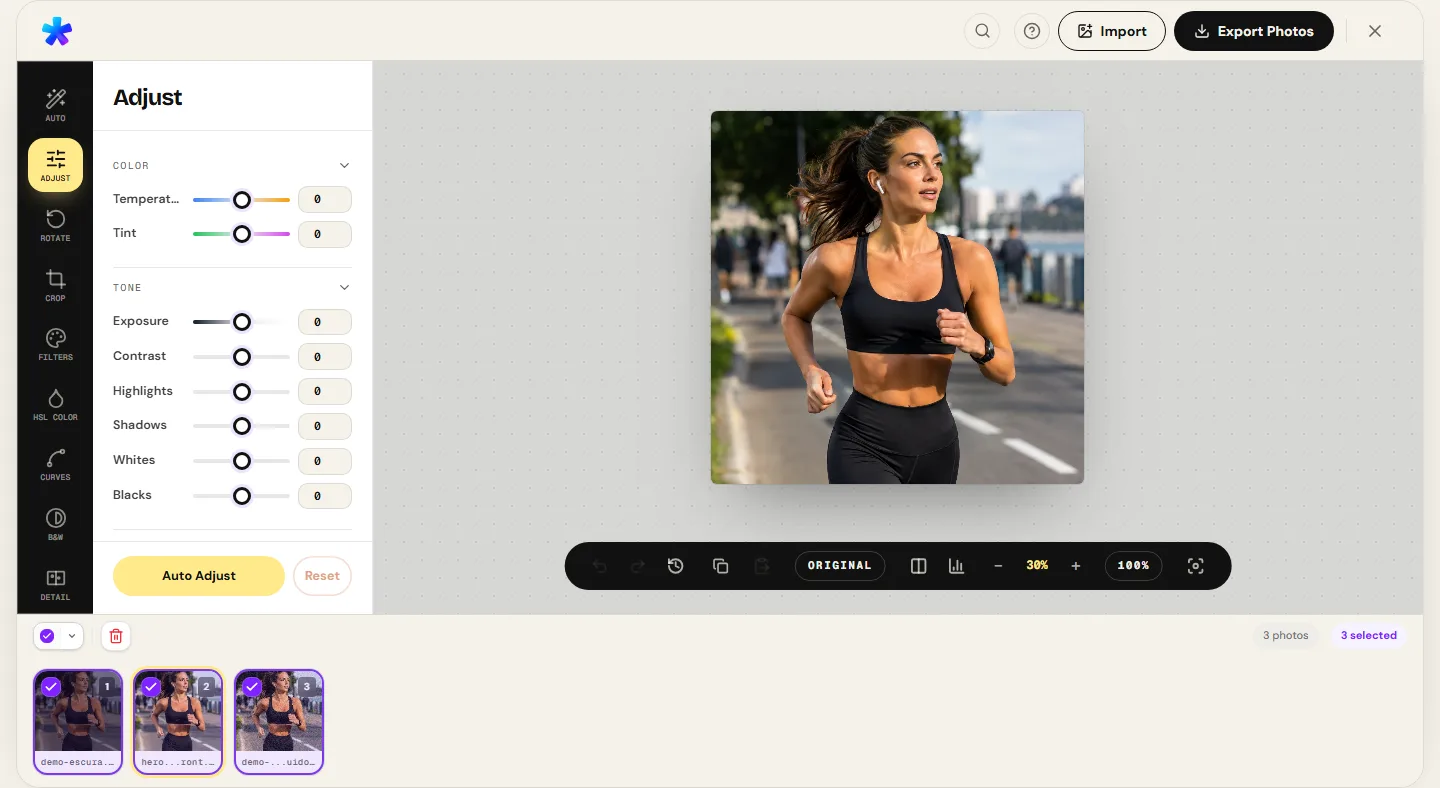
Navigate to the Batch Photo Editing tool and drag multiple image files (JPEG, PNG, or WebP) into the drop zone. Thumbnails populate an interactive horizontal gallery at the bottom of the editor canvas.
Step 2: Calibrating the Lead Frame
Select a representative frame — one reflecting median lighting and exposure across the session. Fine-tune your desired exposure balance, contrast curve, white balance shift, or HSL color grading.
Step 3: Propagating or Analyzing Independently
Click Apply to All to duplicate the lead frame's recipe across the entire queue, or choose Batch Auto to let the algorithm evaluate each photo's histogram independently to counteract ambient lighting fluctuations.
Step 4: Configuring Output Dimensions and File Formats
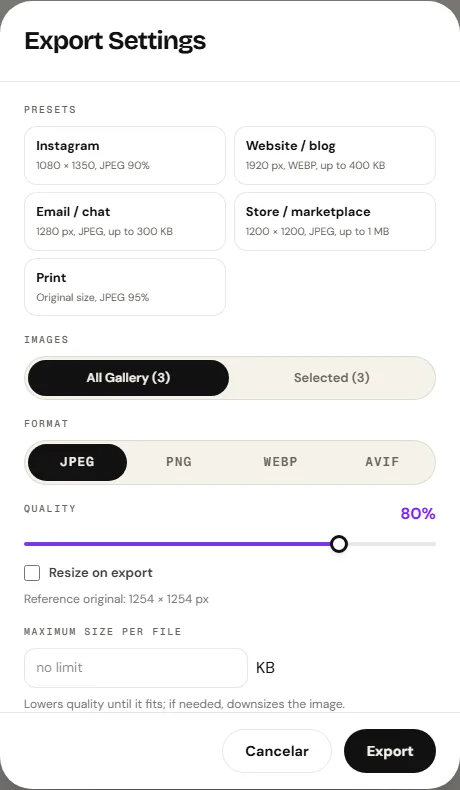
Choose your target export format (JPEG with 85% to 92% compression quality, PNG for graphics without loss of color fidelity, or WebP when the browser supports it). If you have strict upload budgets, enable the maximum file size cap (for instance, 350 KB per asset).
Step 5: Generating and Downloading the ZIP Archive
Click Export Batch. The engine processes each file sequentially, executes streaming DEFLATE compression in real time, and packages the entire batch into a single .zip archive directly in your downloads folder.
6. Comparative Production Scenario Table
The table below summarizes recommended batch settings across the most common photographic and commercial workflows:
| Production Scenario | Recipe Strategy | Resolution & Aspect Ratio | Recommended Output Configuration |
|---|---|---|---|
| E-Commerce Product Catalog | Identical strict recipe (pure white background, fixed WB) | 1:1 Square (1200 × 1200 px), center crop | JPEG at 88% with a 250 KB size cap for ultra-fast page loads. |
| Social Event Photography | Adaptive Batch Auto (per-histogram normalization) | Original aspect ratio, 2048 px long edge | JPEG at 90% for client review galleries via cloud or messaging apps. |
| Architectural & Real Estate Tour | Global recipe with Highlights -30 and Shadows +25 | Horizontal 3:2, 1920 px long edge | JPEG at 92% preserving texture in floors, ceilings, and exterior windows. |
| Social Media Carousel Series | Strict recipe with stylized cinematic color grade | Vertical 4:5 (1080 × 1350 px) | JPEG at 92% or WEBP export (when the browser supports it). |
| Blog & Editorial Image Optimization | Subtle Auto with unsharp mask edge enhancement | Max width 1200 px, proportional height | WEBP export (when the browser supports it) with a strict 180 KB budget. |
7. ZIP Packaging, Filename Tokens, and Local Privacy
Delivering dozens of client files with arbitrary camera names (such as _DSC8492.JPG and _DSC8493.JPG) damages search engine discoverability (SEO) and confuses end clients. PhotoEditor.sbs resolves this with token-based renaming:
{name}: Retains the original source file stem without previous extensions.{n}: Inserts an automated zero-padded sequential counter (e.g.,_01,_02,_03).{date}: Stamps the current ISO date format (YYYY-MM-DD).
For example, applying the pattern handcrafted-leather-bag-{n} instantly organizes your batch into handcrafted-leather-bag-01.jpg, handcrafted-leather-bag-02.jpg, fully ready for catalog publication.
Most importantly: complete client-side privacy. Unlike legacy cloud converters that require uploading gigabytes of private photos to remote servers — subject to transfer delays, data interception risks, and obscure third-party cloud retention terms —, PhotoEditor.sbs performs every operation of file ingestion, resizing, tonal grading, and ZIP packaging entirely inside local browser memory. Your images never leave your computer.
Open the Batch Photo Editing tool
Open the Batch Photo Editing toolFrequently asked questions
How many photos can I edit simultaneously in the batch tool?
The volume of files processed in a single run depends on your computer's available RAM and the resolution of the source files. On typical modern laptops, batches of 30 to 100 high-resolution images process reliably thanks to the editor's sequential micro-batch pipeline.
Can I apply aspect ratio crops to a mixed set of vertical and horizontal photos?
Yes. When setting an aspect ratio rule (such as 1:1 square or 4:5 vertical), the cropping algorithm calculates framing relative to each image's optical center, ensuring consistent crops without distorting or stretching orientations.
What is the difference between 'Apply to All' and 'Batch Auto'?
'Apply to All' duplicates identical numerical slider values (exposure, highlights, contrast, HSL) from the active lead frame to the rest of the queue. 'Batch Auto' calculates an independent histogram percentile analysis for each individual photo, compensating for dynamic ambient lighting shifts.
Does creating a ZIP archive consume my internet data bandwidth?
No. The ZIP archive is generated entirely inside browser memory using the JSZip engine. Zero bytes are uploaded or downloaded across the internet during the compression and file creation process.
How does the target file size limit in KB work?
When you set a maximum file size cap (e.g., 300 KB), the encoding engine performs binary search iterations across JPEG quantization matrices to hit your target file size ceiling without degrading visual sharpness.
Do exported batch photos keep their camera EXIF and GPS tags?
By default web privacy and security standards, the canvas re-rendering pipeline strips sensitive GPS coordinates and camera serial numbers, producing clean, safe files ready for public web deployment.
What happens if one of the images in the batch is corrupted?
The engine identifies decoding anomalies during file ingestion, flags the affected thumbnail with a visual notice, and continues processing the rest of the batch smoothly without crashing the queue.
Which file formats can I choose for saving the final batch?
You can export all batch images as JPEG with adjustable quality, PNG for graphics without loss of color fidelity, or WEBP export (when the browser supports it) to maximize storage savings on modern websites.