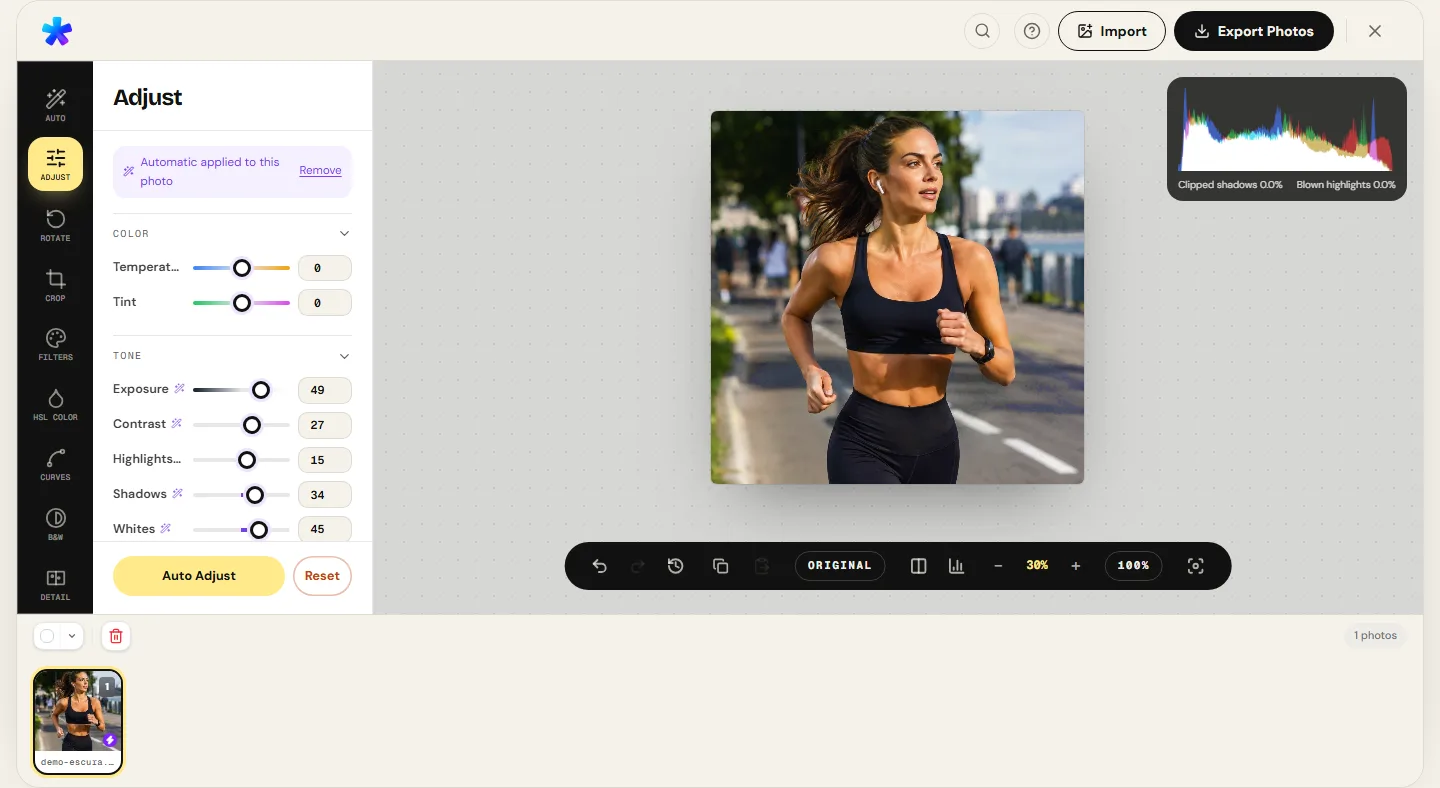
In professional and commercial photography practice, no browser-based editor claims to replace heavy desktop suites built for multi-layer compositing or intricate vector masking. However, the daily reality of working photographers reveals a different landscape: the overwhelming majority of paid assignments — event coverage, client proofing galleries, real estate walkthroughs, e-commerce catalog updates, and social media deliverables — do not require hours of complex compositing, but rather agility, tonal precision, and chromatic fidelity on tight deadlines.
Launching a multi-gigabyte desktop software suite on a field laptop, waiting for cloud licensing validations, and managing proprietary project files consumes valuable turnaround time. In this comprehensive technical guide, we examine the critical stages of the photographic finishing pipeline, the physics of sRGB color conversion, tonal dynamic range management using contrast curves, and how PhotoEditor.sbs serves as an agile finishing environment, running entirely inside your browser with 100% client-side processing and absolute privacy for client NDA assignments.
1. The Workflow Bottleneck in Modern Photography
A professional photography production cycle divides into five sequential stages: Capture, Culling, Base Processing, Tonal Finishing, and Distribution. While capture and culling rely purely on the photographer's artistic eye and editorial discipline, the finishing stage is frequently bogged down by bloated software toolchains.
For a wedding photographer who needs to send ten finished highlight frames to press representatives on the same evening, or a commercial real estate photographer delivering thirty rooms with corrected white balance and geometry by tomorrow morning, firing up heavy desktop suites introduces unnecessary friction. Excessive RAM consumption, accelerated laptop battery drain in the field, and sluggish local catalog caching delay urgent client deliveries.
PhotoEditor.sbs does not aim to replace intensive digital painting or multi-layer graphics compositing; instead, it excels precisely at the rapid finishing link: loading an image, setting black and white clipping points, balancing zonal contrast, tuning skin tones in HSL, and exporting clean deliverables in seconds without cluttering local storage with temporary project caches.
2. Core Analytical Pillars of Photographic Finishing
Rigorous photographic finishing rests upon four analytical pillars of digital image processing:
- Dynamic Range Anchoring (Black and White Points): Before applying any creative color grading, it is essential to anchor the histogram boundaries. The black point must sit cleanly near digital level 0 without crushing fine shadow textures, while the white point should reach value 255 only on specular reflections of direct light sources.
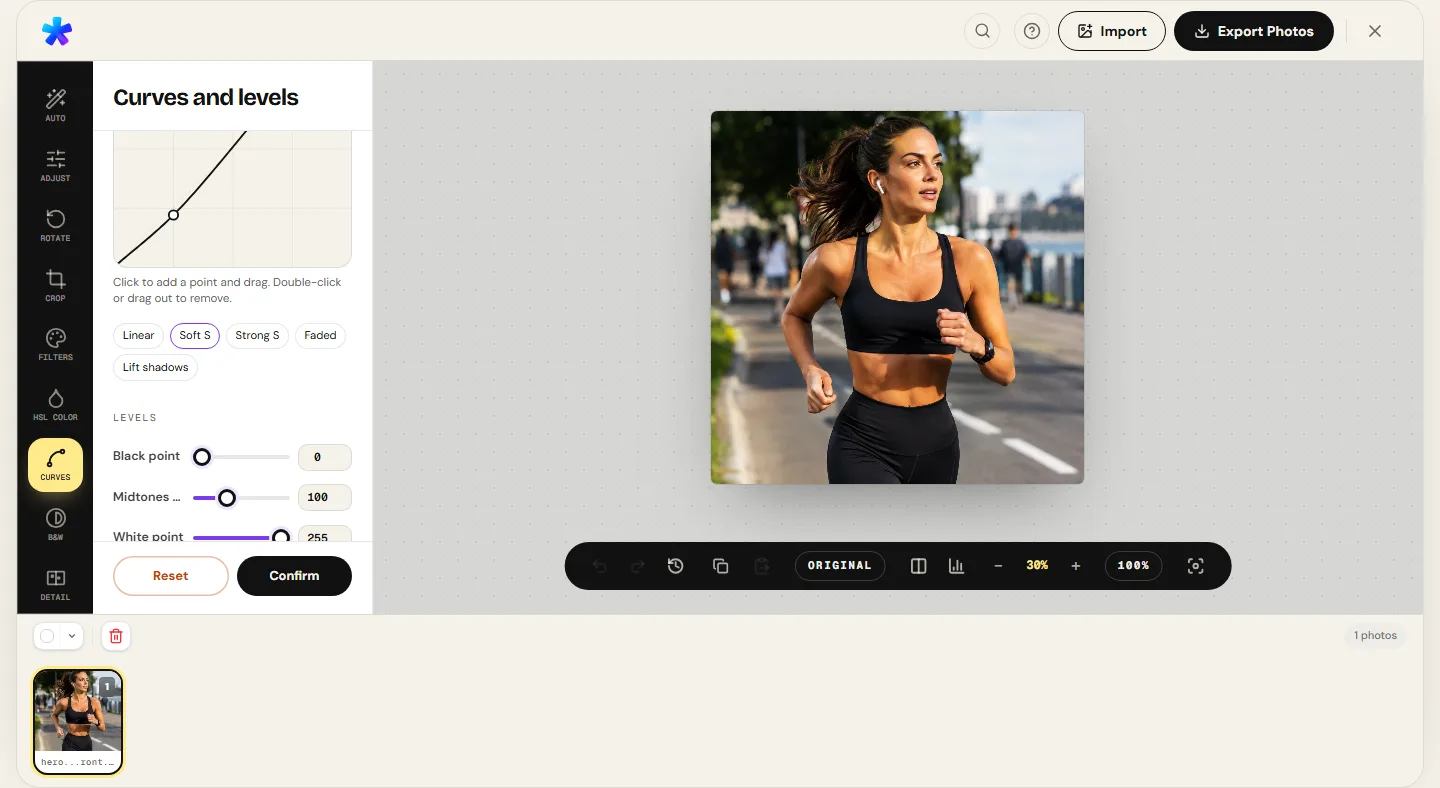
- Zonal Contrast and Sigmoidal S-Curves: Human visual perception responds to contrast not along a linear line, but along a gentle sigmoidal S-curve. Subtly compressing lower-midtones while gently boosting upper-midtones creates depth and three-dimensionality across the scene.
- Selective Chromatic Isolation: Global saturation adjustments frequently degrade natural organic tones. Finishing demands spectral isolation: calming facial redness in corporate headshots via the Orange/Red channels, or deepening sky blue without shifting clothing dyes.
- Spatial Frequency Filtering (Sharpness and Noise): The finished image requires an unsharp mask filter calibrated proportionally to the final output resolution, accentuating edge definition without generating diffraction halos.
3. Color Management: Why sRGB Rules Digital Delivery
Modern camera sensors capture imagery across wide color spaces such as Adobe RGB (1998) or ProPhoto RGB. However, the vast majority of consumer hardware — including smartphone OLED displays, computer monitors, web browsers, and social media platforms — standardizes on the international ITU color space: sRGB IEC61966-2.1.
If an image exported in Adobe RGB is delivered directly to a client or posted online without proper colorimetric profile conversion, consumer browsers interpret wide-gamut coordinates as standard sRGB values. The visual result is compromised: colors appear washed out, skin tones turn dull and ashen, and image contrast collapses.
PhotoEditor.sbs operates natively within the sRGB matrix of the browser Canvas API. When you finish an image and export it, the resulting file is mathematically aligned with the standard sRGB gamma 2.2 curve, guaranteeing that your clients see exactly the tones and contrast you dialed in on your screen.
4. Tool Mapping: From Desktop Suites to the Browser
For photographers accustomed to desktop keyboard shortcuts and control panels, transitioning to PhotoEditor.sbs is immediate with zero learning curve, because the underlying mathematical operations are identical:
- Levels and Tonal Curves: Inside the Curves and Levels panel, you have a cubic spline tonal curve with individual black, midtone, and white point controls, mirroring Photoshop's Curves tool.
- HSL Spectral Adjustments: The HSL Color panel provides eight discrete spectral bands with independent Hue, Saturation, and Lightness controls, matching Lightroom's HSL/Color panel step by step.
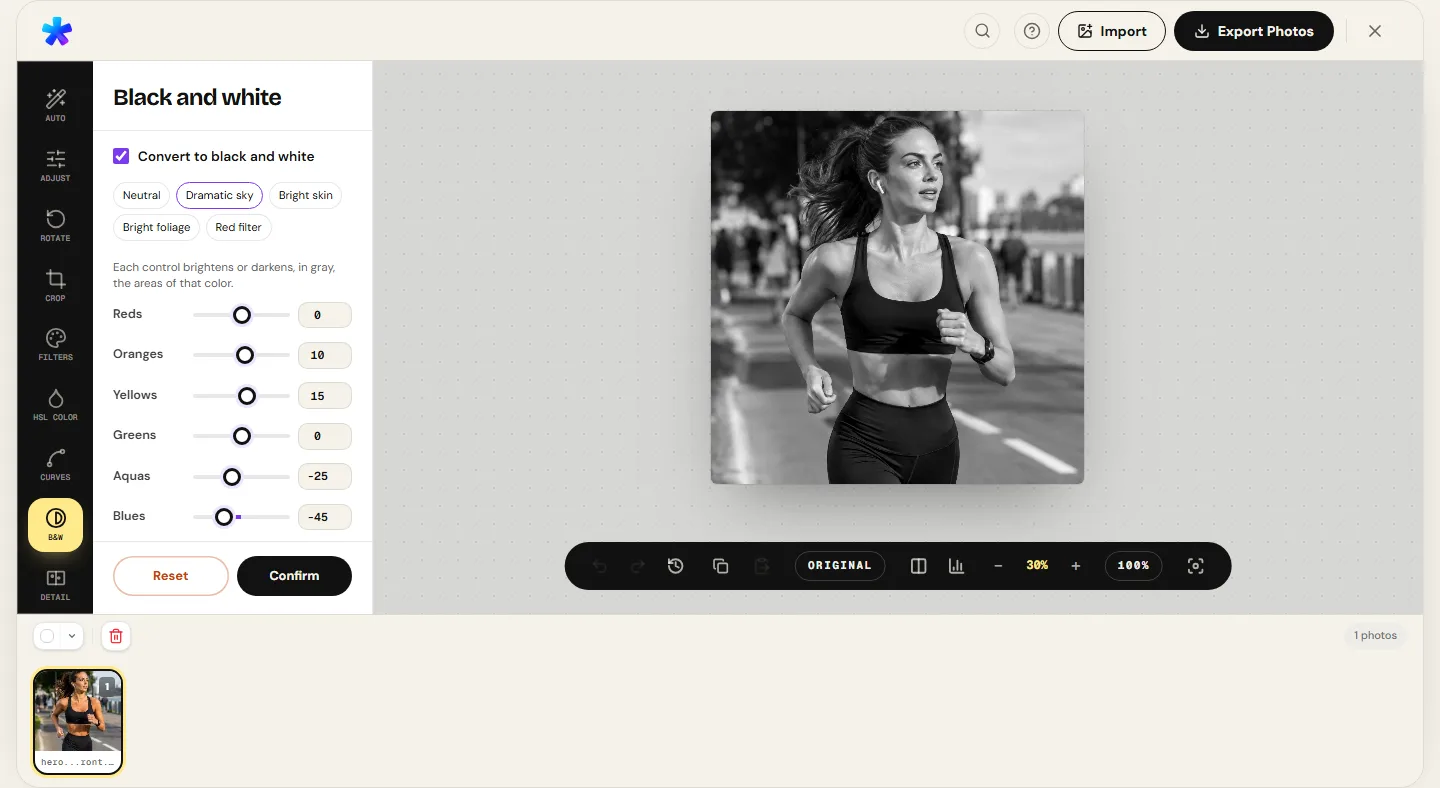
- Black & White Channel Mixer: Rather than applying destructive monochrome desaturation, the Black & White tool provides a spectral channel mixer with classic optical color filters (Red, Yellow, Green, Orange), simulating physical glass filters used in analog film photography.
- Framing and Rule of Thirds: In the Crop Photo tool, compositional grids and standard aspect ratio presets (1:1, 4:5, 16:9, 3:2) make framing adjustments precise and fast.
- Session Queue Processing: The Batch Photo Editing tool applies lead-frame recipes across dozens of files simultaneously, exporting an organized ZIP archive on the spot.
5. Production Pipeline: From Client Proofs to Final Delivery
Here is how to integrate PhotoEditor.sbs into a professional fast-turnaround client delivery pipeline:
Phase 1: Client Proofing Preparation
After offloading memory cards, select the 40 best shots from the shoot. Instead of waiting for large local catalog imports, drag them into the Batch Photo Editing tool. Apply standard aspect ratio cropping, engage Batch Auto to even out minor lighting shifts, and set a 200 KB file size ceiling. In under two minutes, you have a lightweight client proof gallery ready for messaging or email review.
Phase 2: Social Media Hero Frame Finishing
While the client reviews proofs, select the hero frame of the session. Open the image in the single-photo editor, apply a subtle S-curve to lock in deep blacks, calm facial flush in the HSL panel by tweaking the Red channel, and crop to a vertical 4:5 frame optimized for mobile feeds.
Phase 3: Optimized, Secure Export
In the export modal, save your image as JPEG at 90% quality for crisp definition without block artifacts, or export as WebP (when the browser supports it) to reduce page weight on your photography portfolio.
6. Comparative Table: Desktop Suites vs. Web Editor
The table below provides an objective overview of the architectural differences between traditional desktop software and PhotoEditor.sbs:
| Evaluation Criteria | Installed Desktop Suites | PhotoEditor.sbs (Browser) |
|---|---|---|
| Billing Model | Continuous mandatory monthly subscription fees. | 100% free forever, no paid tiers, no intrusive ads. |
| Disk Space & Installation | Demands massive downloads (4 GB to 15 GB) and runtime libraries. | Zero installation. Loads instantly in any modern web browser. |
| Processing & Data Privacy | Local desktop execution, frequently bound to cloud sync check-ins. | 100% client-side browser Canvas processing; zero files sent to servers. |
| Tonal Finishing & Color Grading | Comprehensive (Curves, HSL, Levels, Exposure, Sharpening). | Comprehensive and surgical (Spline curves, 8 HSL bands, Histogram). |
| Multi-Layer Compositing | Deep support for extensive layer stacks and vector masking. | Focused strictly on single-frame photographic finishing, without layer stacks. |
| Portability & Device Agility | Tethered to activated licensed workstations and supported hardware. | Works on any device with a browser (Windows, macOS, Linux, ChromeOS). |
7. Data Security, EXIF Metadata, and NDA Client Contracts
Commercial and event photographers routinely sign Non-Disclosure Agreements (NDAs) with corporate brands, celebrities, or wedding clients. These contracts strictly forbid uploading unreleased imagery to third-party cloud servers before official launch campaigns.
Many traditional free online tools operate on a file-harvesting model: users upload photos to remote servers where files are stored for processing before returning a download link. This architecture directly breaches client NDAs and exposes photographers to legal liability.
With PhotoEditor.sbs, image processing is mathematically confined to your local browser environment. Pixels are loaded directly into RAM by the browser JavaScript Canvas engine. Furthermore, canvas re-rendering naturally strips GPS geolocation coordinates and camera body serial numbers, ensuring compliance with strict data protection frameworks (GDPR and LGPD).
Try Photographer Tools on PhotoEditor.sbs
Try Photographer Tools on PhotoEditor.sbs8. Frequently Asked Questions
Frequently asked questions
Does PhotoEditor.sbs replace Photoshop for professional photographers?
Not for complex compositing or multi-layered graphic designs. PhotoEditor.sbs serves as an agile finishing tool, covering exposure balancing, tonal curves, selective HSL color grading, cropping, and batch processing without monthly subscriptions.
Can I use PhotoEditor.sbs for photos protected by client NDAs?
Yes. Because the editor processes all pixel data locally in your browser memory via the Canvas API, your images are never transmitted to any external server, fully respecting client confidentiality agreements.
How does the editor handle the sRGB color space for client delivery?
The engine processes images natively in the standardized web sRGB color space. This ensures that the colors, contrast, and tones you see on your screen during editing match what clients see on their smartphones and laptops.
Is there a quick toggle to compare before and after edits?
Yes. The editor features an instant before/after toggle button, allowing you to preview your original image against your current adjustments to evaluate tonal progress without losing your reference point.
Do exported photos retain enough quality for physical fine-art printing?
Yes. When you load a high-resolution image and export as JPEG at maximum quality (95% to 100%) or as PNG without color degradation, the full megapixel resolution and fine detail of your original photo are preserved.
What does the Black & White tool provide beyond standard desaturation?
It provides a spectral channel mixer inspired by optical lens filters (red, yellow, green, orange) from analog film photography, allowing you to lighten or darken specific scene elements based on their original colors before monochrome conversion.
How does batch editing work for event photography galleries?
You can load dozens of photos simultaneously, apply your lead frame's color and exposure recipe across the entire queue with one click (or use per-image auto equalization), and download all files organized in a single ZIP archive.
Which file formats are supported for final export?
You can save your finished images as high-quality JPEG, crisp PNG, or WEBP export (when the browser supports it) to maximize web performance and reduce file sizes for digital portfolios.