Editing photos for Instagram and contemporary social platforms is far more than slapping on an aesthetic filter: it is a technical struggle against automated server-side compression, downsampling, and arbitrary aspect ratio cropping algorithms. Every single image uploaded to the Meta ecosystem (Instagram, Facebook, Threads) or to TikTok undergoes an aggressive ingestion pipeline that strips metadata, crushes excessive resolutions, and imposes lossy compression artifacts.
The classic frustration experienced by photographers and content creators is well known: a razor-sharp, vibrant 24-megapixel photograph, captured with a high-end dedicated camera or flagship smartphone, turns into a muddy, pixelated picture with crushed gradients and blocky skies once published on the feed. This degradation happens because platform servers are calibrated strictly to conserve network bandwidth across mobile cellular connections — not to preserve your subtle lighting nuances.
In this comprehensive guide, we unpack social media photo preparation into 70% visual engineering (compression physics, mobile screen geometry, attention economics, and OLED color calibration) and 30% private, client-side execution in PhotoEditor.sbs, utilizing our browser-native Crop panel, surgical resizing, and calibrated Instagram export engine.
Why Instagram destroys high-resolution uploads
A persistent myth among social media users is the idea that uploading a massive image (such as a 6000 × 4000 pixel file weighing 15 MB) forces the platform to render the picture with maximum possible fidelity. In reality, the exact opposite occurs.
When Instagram's ingestion nodes receive an image wider than 1080 pixels, the automated pipeline triggers aggressive processing to bring the file within standard mobile display tolerances:
- Violent Downsampling: The platform recalculates the width down to 1080 pixels using fast, low-overhead resizing routines that introduce aliasing, blur intricate hair or foliage textures, and degrade perceived sharpness.
- Aggressive JPEG Quantization: The compression matrix targets a lightweight file footprint, frequently pushing the image below 300 KB. Smooth color gradients — like golden-hour sunsets or clean blue skies — suffer severe posterization and visible banding steps.
- Chroma Subsampling (4:2:0): The compression engine halves the resolution of color difference channels compared to the luminance channel. Saturated reds and bright magentas bleed abruptly at high-contrast edges.
The proven professional counter-measure: You must deliver the image already pre-resized to exactly 1080 pixels in width, with controlled micro-contrast and clean compression. By performing this step locally inside PhotoEditor.sbs, you dictate the resampling quality, ensuring platform algorithms don't obliterate your photo's texture.
The mathematics of DCT compression and mosquito artifacts
To understand why your edits sometimes look coarse after upload, one must examine the fundamental mathematics powering JPEG encoding: the Discrete Cosine Transform (DCT).
When an image is encoded into JPEG format, the canvas is subdivided into modular blocks of 8 × 8 pixels (64 spatial points). The mathematical engine transforms these spatial intensity values into frequency domain coefficients:
- Low-Frequency Coefficients (DC Component): Capture gradual ambient gradients, broad tonal expanses, and uniform backgrounds. The human eye is exceptionally sensitive to these shifts, so standard encoders preserve them with higher precision.
- High-Frequency Coefficients (AC Components): Represent abrupt contrast transitions, such as fine hair strands, fabric weaves, architectural edges, and embedded graphic typography. Because human visual biology exhibits reduced acuity for high-frequency micro-variations, JPEG quantization matrices aggressively discard these values to achieve heavy data reduction.
When an uploaded image features excessive uncurbed sensor grain, fake digital sharpness halos, or harsh noise, the DCT encoder attempts to allocate limited bit budget across massive high-frequency fluctuations. The computational breakdown produces two infamous artifacts:
- Blocking Artifacts: The boundary lines between adjacent 8 × 8 macroblocks become starkly visible as a checkerboard grid across what should have been a smooth sky or skin gradient.
- Mosquito Noise (Ringing Artifacts): High-contrast borders (such as dark text against a white background or high-contrast silhouette edges) develop a halo of buzzing, noisy pixel clusters resembling buzzing insects.
| JPEG Export Quality | Target File Size (1080 × 1350) | Visual Fidelity on Mobile | Platform Recompression Behavior |
|---|---|---|---|
| 100% (Maximum) | 1.2 MB – 2.0 MB | Visually indistinguishable from uncompressed master | Triggers extreme secondary platform recompression, resulting in unpredictable degradation. |
| 90% (Instagram Preset) | 280 KB – 450 KB | Pristine edge definition, zero visible banding | Optimal threshold: slides directly under Meta ingestion limits with minimal platform tampering. |
| 80% – 85% | 150 KB – 240 KB | Clean general performance on standard mobile screens | Negligible platform recompression; minor smoothing of ultra-fine background grain. |
| Below 70% | Under 100 KB | Noticeable blocking in dark shadows and chromatic smearing | Already compromised prior to upload; not recommended for professional portfolios. |
Feed geometry: why the 4:5 vertical ratio maximizes engagement
In an era dominated by vertical smartphone screens, aspect ratio is directly linked to viewer attention duration. The human eye scans fast-scrolling mobile feeds in fractions of a second.
Compare the spatial real estate of the three primary feed formats:
- Landscape (16:9 or 1.91:1 — 1080 × 608 px): Occupies barely a third of modern smartphone screens. Viewers simultaneously see the preceding post and the subsequent ad, making it effortless to flick past your content without stopping.
- Square (1:1 — 1080 × 1080 px): The historic hallmark of early Instagram. Harmonious and symmetrical, but leaves substantial unused blank space at the top and bottom on modern 19.5:9 mobile viewports.
- Vertical Portrait (4:5 — 1080 × 1350 px): The maximum vertical dimension supported in the regular feed without automatic cropping. It provides 78% more vertical screen real estate than a 16:9 landscape image, commanding virtually the entire mobile screen. This minimizes surrounding distractions and measurably increases dwell time — a core signal driving algorithmic distribution.
Official social media aspect ratios and dimension benchmarks
Based on official specifications from Instagram Help Center and Meta Reels and Stories Guidelines, the established geometric standards across major social networks are:
| Platform / Channel | Aspect Ratio | Target Dimensions (px) | Primary Creative Purpose |
|---|---|---|---|
| Instagram Vertical Feed | 4:5 (or 8:10) | 1080 × 1350 px | Maximum mobile screen coverage; optimal for portraits, fashion lookbooks, and product photography. |
| Instagram Square Feed | 1:1 | 1080 × 1080 px | Classic balanced feed layout; ideal for centered compositions, graphics, and multi-product collages. |
| Instagram Landscape Feed | 1.91:1 to 16:9 | 1080 × 566 to 1080 × 608 px | Panoramic travel vistas and wide environmental editorial scenes. |
| Instagram Stories / Reels | 9:16 | 1080 × 1920 px | Immersive full-screen mobile experience; strictly requires honoring interface safe zones. |
| Profile Avatar (Display Picture) | 1:1 (Circular Mask) | 320 × 320 px (Export at 1080 × 1080) | Keep subject face or brand logo dead-center to avoid getting clipped by circular edge masks. |
| TikTok and YouTube Shorts | 9:16 | 1080 × 1920 px | Universal full-screen mobile format for short-form dynamic media and photo carousels. |
| LinkedIn and Facebook Feed | 1.91:1 or 4:5 | 1200 × 628 px or 1080 × 1350 px | Professional B2B carousel slides, corporate announcements, and high-impact graphics. |
Calibrating contrast and saturation for smartphone OLED displays
The overwhelming majority of modern handsets feature vibrant OLED or AMOLED screens capable of reaching peak brightness levels well over 1,200 nits in direct sunlight, backed by true deep blacks. Editing exclusively on a modest desktop monitor frequently creates misleading results:
1. The Danger of Blown Highlights
PhotoEditor.sbs gives you direct access to an interactive real-time histogram. Closely inspect your highlight distribution: pixels pegged at value 255 (blown white containing zero detail) become blindingly stark on high-nits phone displays. Furthermore, platform compression engines render blown patches as ugly, blocky thresholds. Tame the Highlight slider to preserve delicate cloud formations and specular reflections.
2. Global Saturation vs. Intelligent Vibrance
Cranking up global Saturation is the single most common amateur editing blunder on social media. Oversaturated color values exceed standard mobile display gamuts, resulting in smeared, neon-tinged skin tones and blown-out floral details.
Always reach first for the Vibrance control: it dynamically targets muted and desaturated tones while protecting already-rich colors and preserving natural human skin pigments. If an individual hue (like a distracting neon sign or an overly cyan sky) demands correction, isolate it inside the HSL color panel.
3. Mandatory sRGB Color Profile
Photographers who shoot in wide gamuts like Display P3 or Adobe RGB must remember that public web browsers and social media mobile apps default strictly to standard sRGB. Uploading raw Adobe RGB files without proper conversion causes colors to render dull, washed-out, and lifeless on mobile devices. PhotoEditor.sbs automatically manages canvas processing within standard sRGB color space.
Color harmony and achieving grid aesthetic consistency
When a curious visitor taps your profile handle, they decide whether to follow your account within three seconds. In that critical moment, they evaluate the collective harmony of your nine-to-twelve image grid thumbnail matrix rather than individual pictures.
Three core principles create an arresting, unified profile grid:
- Consistent White Balance & Temperature: Avoid alternating between warm, golden-hour amber tones (6500 K) and icy blue winter tones (4500 K) from one post to the next. Establish a signature tonal mood for each series.
- Recipe Copying: In PhotoEditor.sbs, when you establish a balanced light and curve profile for a hero photo, copy those adjustments using the
Ctrl+Cshortcut and paste them across subsequent batch photos withCtrl+V. This gives multi-slide carousels cohesive visual continuity. - Alternating Shot Scale: Avoid publishing three identically framed close-up portraits side by side. Alternate between tight detail shots, medium portraits, and wide environmental compositions to keep the grid dynamic.
Step-by-step PhotoEditor.sbs workflow: from HEIC to pristine export
Here is the professional workflow to take your raw phone captures to publication-ready social media assets, with complete privacy and zero quality loss:
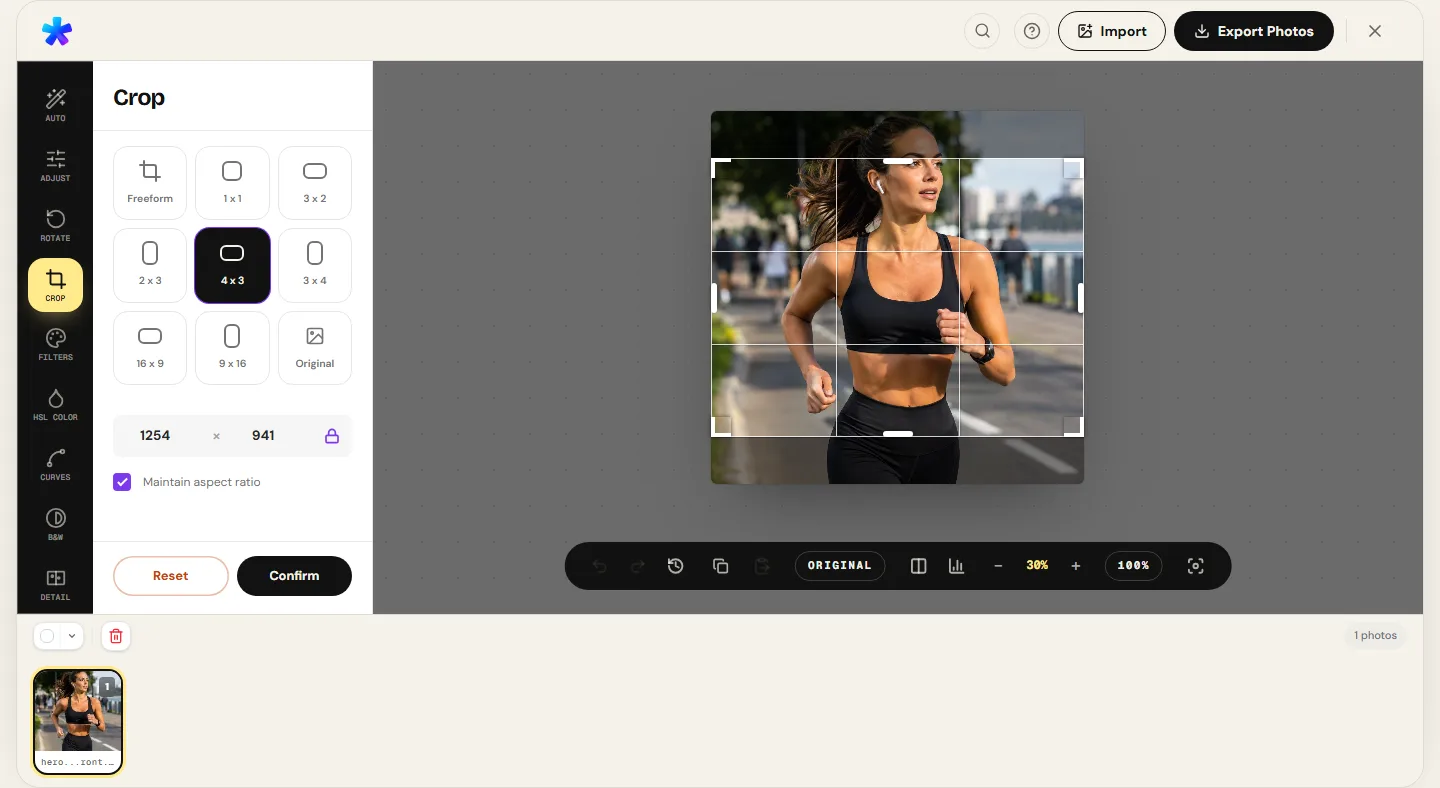
- Import Your Photo: Open PhotoEditor.sbs and drop your file. If your photo originates from an iPhone in HEIC format, the browser engine decodes it client-side without third-party converters.
- Level the Horizon in the Rotate Tool: Crooked horizons immediately undermine architectural and travel photography. Head to the Rotate panel and use the auto-leveling button or manual angle slider.
- Set 4:5 or 1:1 Aspect Ratio: In the Crop panel, lock the ratio to 4:5 for vertical feeds. Frame your focal point using the rule-of-thirds grid overlay and click Confirm.
- Apply the Social Media Preset: In the Auto panel, select the Social Media recipe. This automatically dials in calibrated vibrance (+15), clarity (+8), and midtone contrast (+5) to prevent muddy shadows on mobile screens.
- Fine-Tune Curves and Film Fade: If you seek a cinema-inspired mood with gently lifted matte blacks, slightly elevate the bottom-left anchor of the RGB curve inside the Curves tool.
- Review with Before/After Split: Toggle the split slider at the bottom of the canvas to ensure your edits remain clean and organic rather than over-processed.
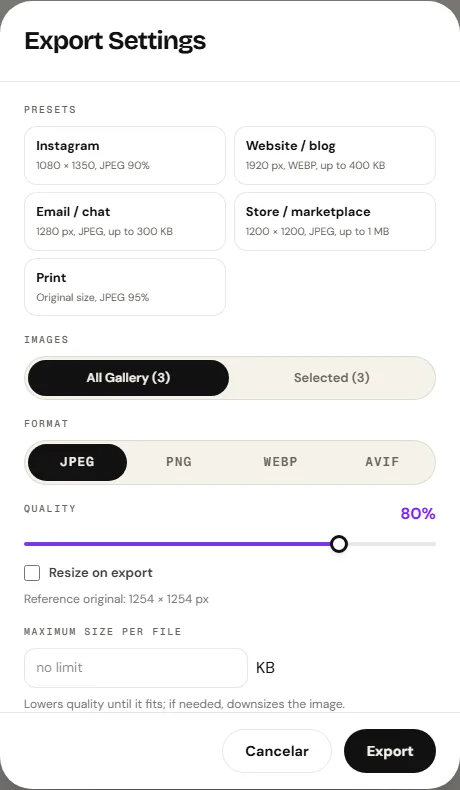
- Export via the Instagram Preset: Open the export modal and select the Instagram preset. The system automatically handles resizing to 1080 × 1350 pixels in 90% quality JPEG.
Safe zones in Stories, Reels, and TikTok vertical full-screen feeds
When formatting visual content for 9:16 vertical full-screen channels (1080 × 1920 px), a common oversight undermines high-production assets: native app UI overlays.
Mobile apps obscure substantial perimeter regions:
- Top Margin (~250 px): Covered by phone status bars (time, battery, Wi-Fi), creator profile badges, and account handles. Never position primary text headlines in this region.
- Bottom Margin (~320 px to 400 px): Reserved for reply boxes, audio attribution marquees, captions, and hashtag expansion. Any crucial graphic placed here will be unreadable.
- Right Margin (~150 px): In Reels and TikTok, this vertical strip houses engagement buttons (likes, comments, bookmarks, and share arrows).
When cropping to 9:16 in PhotoEditor.sbs, ensure human faces and essential typography remain centered within the safe central box (approximately 1080 × 1200 px).
Digital privacy: stripping EXIF location tags before public sharing
Digital cameras and modern smartphones secretly record comprehensive EXIF metadata inside every snapshot. These hidden tags contain:
- Pinpoint GPS coordinates (latitude and longitude revealing residential or workplace locations);
- Exact capture timestamps and timezone details;
- Camera serial numbers, lens models, and device hardware identifiers;
- User account names and technical exposure settings.
While Instagram strips EXIF tags from public images in the feed, transmitting raw metadata during upload exposes private location history to platform corporate servers. PhotoEditor.sbs strips all EXIF metadata locally before files leave your machine, ensuring complete privacy. If you want a quick tool dedicated exclusively to batch file sanitization, use our standalone Remove photo metadata tool.
Frequently asked questions
What is the single best photo size for the Instagram feed?
The 4:5 vertical portrait aspect ratio (1080 × 1350 pixels) is the clear winner. It maximizes vertical screen real estate without getting clipped by the app, driving superior viewer engagement.
Why do my photos lose sharpness when uploaded to Instagram?
This happens because Instagram aggressively compresses and downsamples images wider than 1080 pixels. Resizing your photo to exactly 1080 px wide before uploading eliminates the platform's harsh server-side resampling.
Should I post in JPEG or PNG format on Instagram?
Use high-quality JPEG (88% to 92%). While PNG supports lossless compression, Instagram's ingest pipeline automatically converts PNGs into JPEGs upon upload, causing unpredictable recompression artifacts.
How can I edit multiple carousel slides to look visually cohesive?
In PhotoEditor.sbs, adjust the tone and curves of your first slide, press Ctrl+C to copy the recipe, select the next image, and press Ctrl+V. This applies identical color grading across the entire carousel sequence.
Does the editor work directly inside mobile phone browsers?
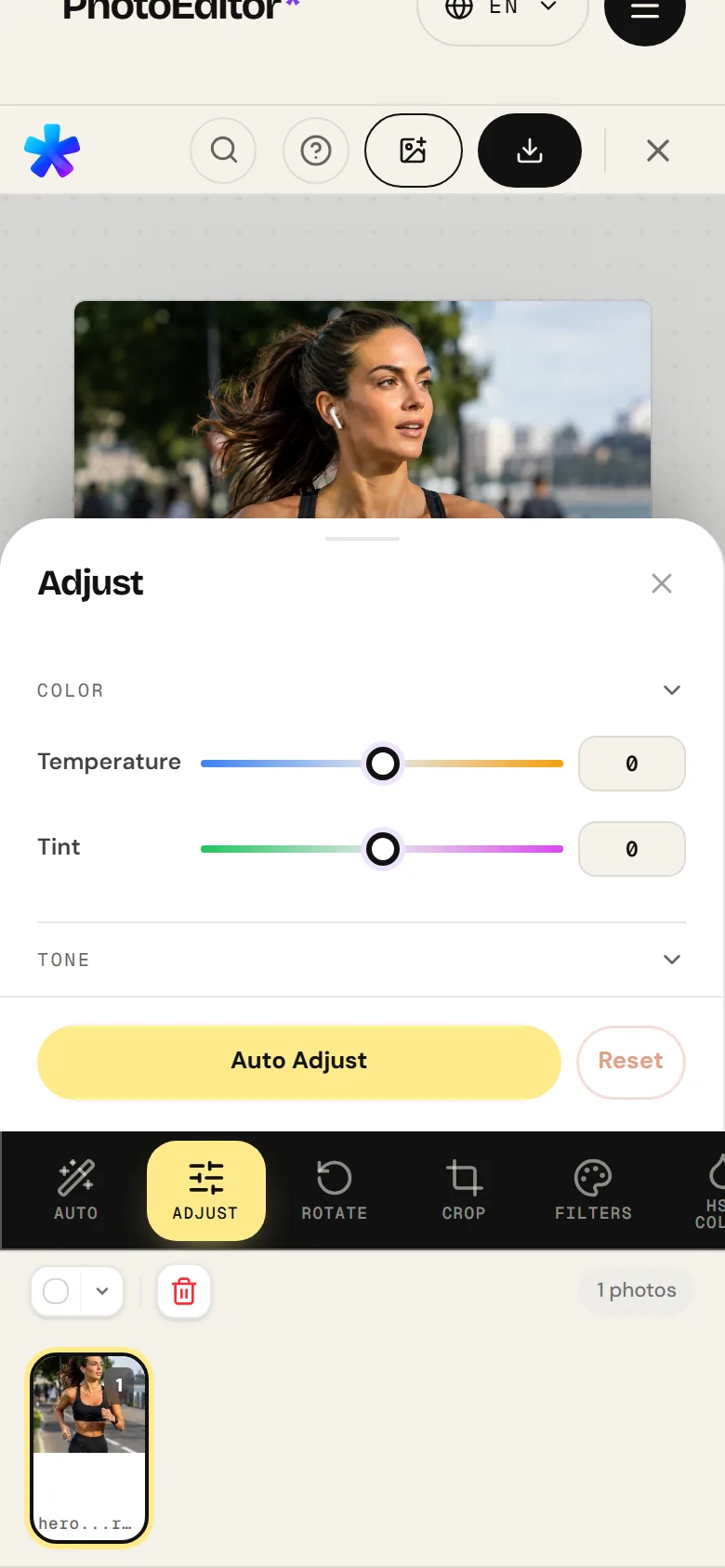
Yes. PhotoEditor.sbs is fully responsive. The toolbar, crop handles, and adjustment drawers operate smoothly on touchscreen Android and iOS devices without requiring app installations.
What are the safe zones for Instagram Stories and Reels?
Safe zones are the unobstructed central display areas. To keep text and faces visible away from UI battery bars and like icons, leave approximately 250 px of padding at the top and 350 px at the bottom.
Can I upload WEBP format photos to Instagram?
Instagram's standard app interface does not accept WEBP uploads. Use PhotoEditor.sbs's calibrated JPEG export preset for social publishing, reserving WEBP (when the browser supports it) for web design and blogs.
How do I prevent the 4:5 crop from awkwardly cutting off limbs?
In the Crop panel, pay close attention to joint anatomy. Never place the crop line across knees or ankles; frame either mid-thigh or show the full figure with adequate breathing space below the feet.