If you have ever dumped hundreds of photographs from a vacation, wedding, or commercial project onto your computer and were confronted with an impenetrable list of arbitrary filenames like IMG_0492.JPG, DSC_8123.JPG, or DCIM_001.JPG, you understand the organizational chaos of digital photography. When you merge pictures taken across multiple cameras or smartphones into a single folder, files with identical generic names collide, risking accidental overwrites that can permanently destroy irreplaceable memories or client assets.
Adopting a disciplined, professional naming convention is not merely about aesthetic neatness; it is the structural backbone of durable digital asset management, rapid searchability, and reliable client delivery. In this comprehensive guide, we explore international archival naming standards (such as ISO 8601), the necessity of zero-padded sequential numbers, dynamic token templating ({name}, {n}, {date}), and how to batch process and rename dozens of images in batch mode inside PhotoEditor.sbs's Batch Edit Photos tool — packaging your clean images into a ZIP archive directly in your browser without uploading your files to remote servers.
1. Camera Filename Chaos and the Peril of Overwrites
Digital cameras and smartphones assign filenames based on the legacy DCF (Design rule for Camera File system) standard. This standard uses an arbitrary four-character prefix paired with a rolling four-digit integer — for example, DSC_0001.JPG cycling through DSC_9999.JPG. Once the counter reaches 9999, it automatically rolls over back to 0001, generating new files with names identical to those shot years prior.
The danger multiplies when multiple photographers collaborate on a shoot. When you aggregate memory cards onto a centralized hard drive, operating systems trigger filename collision warnings. One inadvertent click on "Replace File" will permanently overwrite irreplaceable images with completely unrelated pictures shot on a different device.
2. The ISO 8601 Standard: Why the Date Must Come First
The global gold standard for chronological digital archiving is governed by ISO 8601, which dictates descending numeric dates: YYYY-MM-DD (Year, Month, Day):
- Automatic Lexicographical Sorting: Operating systems (Windows Explorer, macOS Finder, and Linux) sort file directories alphabetically by default ASCII string value. If you format a file as
08-11-2026_Landscape.jpg, files from November 2026 will mix haphazardly with files from November 2024. Starting your filename with the four-digit year (2026-11-08_Landscape.jpg) ensures that alphabetical file sorting automatically mirrors chronological capture order across any computer, server, or cloud storage platform. - Concise Project Slugs: Following the date, append a clean descriptor separated by hyphens or underscores — for instance,
2026-11-08_wedding-smith.
3. Numerical Indices: The Vital Importance of Zero-Padding
Another classic archiving mistake is using unpadded integer counters (1, 2, 3... 10, 11). Under standard computer character sorting, operating systems evaluate the first ASCII character in isolation, sorting files in a disordered sequence: image-1.jpg, image-10.jpg, image-11.jpg, image-2.jpg.
The universal professional remedy is zero-padding: append leading zeros to match your project volume. Using three digits (-001, -002... -999) for shoots containing up to one thousand photos guarantees that chronological photo presentation remains intact during slideshows and client reviews.
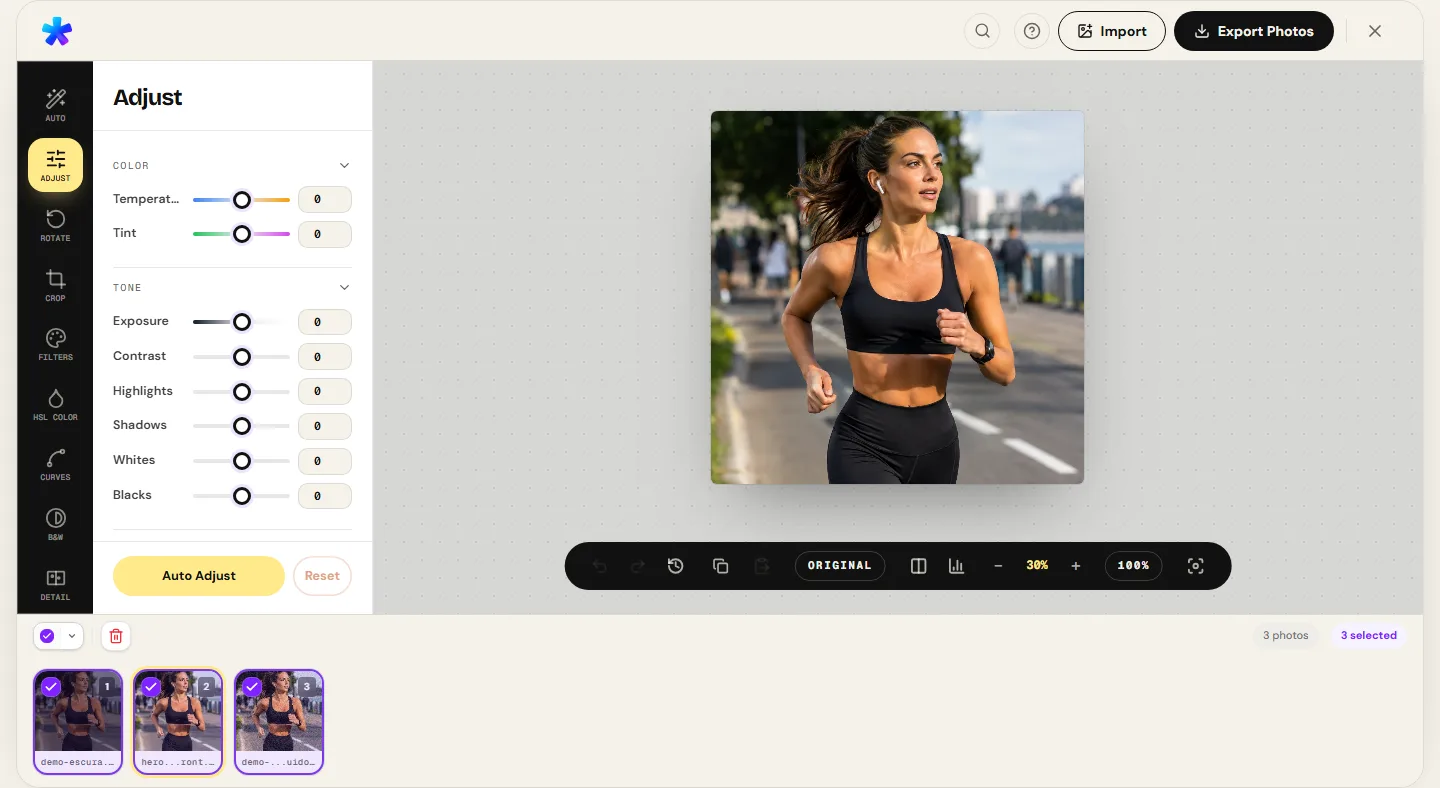
4. Dynamic Token Syntax: {name}, {n}, and {date}
With PhotoEditor.sbs, you never have to rename files one by one. The batch processing workspace features a clean token templating system that dynamically interpolates file metadata for each processed frame:
{name}: Preserves the source file's base name (excluding the extension), retaining prior organizational codes if desired.{n}: Injects an automatic sequential integer index starting at 1 for every queued photograph.{date}: Injects today's current date formatted to the ISO 8601 standard (YYYY-MM-DD).
For example, specifying {date}_product-catalog_{n} will convert a disorganized batch of photos into 2026-11-08_product-catalog_1.jpg, 2026-11-08_product-catalog_2.jpg, and so on.
5. Client-Side Queued Processing and In-Browser ZIP Packaging
Most traditional web-based batch tools require users to upload hundreds of megabytes or gigabytes of sensitive imagery over the internet to remote cloud servers, wait in remote processing queues, and then re-download everything — consuming internet bandwidth and risking data exposure.
PhotoEditor.sbs utilizes a modern client-side architecture: your batch is processed 100% inside your browser using an asynchronous queued pipeline executing locally within your device's memory. The engine resizes, grades, and renames each image locally. When processing completes, it compiles all exported files into a single ZIP archive for direct download — with zero remote uploads and total privacy.
6. Comparative Reference Table: Filename Architectures
Below is a comparative breakdown of common naming conventions and their practical behavior in file systems:
| Naming Architecture | Concrete Example | Behavior in File Directories | Technical Rating |
|---|---|---|---|
| Raw Camera Default | IMG_4021.JPG | Chaotic; high risk of namespace collisions and overwrites. | Inadequate (Avoid) |
| Simple Descriptive with Spaces | Birthday Party Photo (1).jpg | Spaces break web image paths, command line tools, and scripts. | Problematic |
| Unordered Date | 15-08-2026_beach.jpg | Scatters months and years randomly in alphabetical view. | Suboptimal |
| ISO 8601 + Descriptor + Index | 2026-11-08_smith-wedding_001.jpg | Flawless chronological sorting, instant search, universal compatibility. | Professional (Recommended) |
| E-Commerce Catalog SKU | SKU-7842_front_01.jpg | Optimized for Shopify, Amazon, ERP databases, and inventory. | Commercial Standard |
7. Step-by-Step: Batch Renaming and Exporting in PhotoEditor.sbs
Organize and prepare an entire image gallery in four simple steps:
Step 1: Load Your Images into Batch Mode
Open Batch Edit Photos and select all the photographs you wish to organize.
Step 2: Configure Common Operations
Optionally standardize maximum pixel dimensions, apply color balance adjustments, or set compression parameters across the entire batch.
Step 3: Define Your Token Template Pattern
In the output filename field, enter your desired structure combining literal text and dynamic tokens — such as 2026-11-08_project_{n}.
Step 4: Process and Download the ZIP Archive
Click process. The editor processes each image locally in browser memory and generates a clean ZIP archive containing all renamed files ready for immediate delivery.
Honest Technical Boundary Note
PhotoEditor.sbs applies dynamic token renaming during batch export packaging into the downloaded ZIP file inside the browser. In compliance with browser security sandbox policies, the editor does not rename files directly in-place on your computer's physical local file system.
Batch Organize and Rename Photos Now
Batch Organize and Rename Photos Now8. Frequently Asked Questions
Frequently asked questions
Why is it important to rename photos taken by digital cameras?
Cameras use generic rolling filenames that repeat frequently. Renaming files with dates and project names prevents accidental file overwrites and makes files easily searchable in computer archives.
What happens if I use spaces in my filenames?
Spaces in filenames can break image links on websites, require complex (%20) escape codes in URLs, and trigger errors in command-line automation scripts. Use hyphens (-) or underscores (_) instead.
How many photos can I batch process and rename simultaneously in PhotoEditor.sbs?
Because processing occurs locally in browser memory using Web Workers, you can process dozens of photos smoothly, limited only by your computer's available RAM.
Does PhotoEditor.sbs charge fees for batch processing or downloading ZIP files?
No. PhotoEditor.sbs is completely free. There are no paid tiers, no queue restrictions, and no watermarks placed on exported pictures.
Will my original photos on my computer be modified during batch processing?
No. Your original source files remain completely untouched on your hard drive. The editor generates new, renamed files neatly packaged inside the downloaded ZIP archive.
Can I combine image resizing and file renaming in the same batch operation?
Yes. You can specify maximum pixel dimensions, compression quality, and your custom naming template all within a single batch pass.
Does batch processing consume mobile cellular data?
No. All image resizing, color processing, and ZIP archive creation are processed locally on your device within the browser, without transmitting your photos to external cloud servers.
What file formats are supported when exporting a processed batch?
You can export your batch in high-quality JPEG or lossless PNG, as well as in WebP format when the browser supports Canvas WebP encoding.