Have you ever snapped a family picture indoors at night only to realize that every face, wall, and furniture piece was drenched in an unnatural suffocating yellow? Or captured an ocean coastline on an overcast afternoon where the entire frame looked uninvitingly cool, blue, and flat? These jarring chromatic errors stem directly from miscalibrated white balance, one of the most foundational yet frequently misunderstood pillars of digital photography.
While the human visual cortex automatically recalibrates to interpret colors consistently under varying ambient conditions, digital camera sensors register incoming electromagnetic energy with literal, unyielding mathematical objectivity. In this detailed guide, we explore the physics of blackbody radiation, the Planckian locus, the Kelvin color temperature scale, the orthogonal Green-to-Magenta Tint axis, Von Kries chromatic adaptation, and how to calibrate your pictures with surgical precision inside PhotoEditor.sbs's Adjust Photo tool — running 100% locally in your browser.
1. Blackbody Radiation Physics and the Kelvin Scale
Color temperature does not measure tactile heat on your skin; rather, it quantifies the dominant electromagnetic wavelength emitted by an idealized thermodynamic object. This phenomenon was mathematically formalized by Max Planck through his theory of blackbody radiation:
- Picture an idealized black metal sphere that reflects zero external ambient light. When heated to roughly 1,000 Kelvin (approximately 727 °C), the metal begins glowing with a deep dull visible red.
- As thermodynamic thermal excitation climbs to 3,000 K, the emission spectrum shifts toward radiant yellow-orange (incandescent tungsten filament and candlelight).
- Around 5,500 K, it reaches pristine neutral white (matching direct solar noon sunlight).
- Beyond 8,000 K through 12,000 K, radiant energy concentrates heavily in deep blue and ultraviolet bands (diffuse blue light scattering across open shade).
The continuous arc traced by these chromatic coordinates on the standard CIE 1931 chromaticity diagram is known as the Planckian Locus. In photography, describing a light source as 3,200 K means it emits the exact same spectral power distribution as a physical blackbody radiator brought to that precise temperature.
2. Von Kries Chromatic Adaptation vs. Digital Camera Sensors
If you hold a clean sheet of white printer paper beside an open fireplace at night and later carry that same sheet outdoors into harsh midday sunlight, your brain perceives the paper as uniformly white in both environments. This biological marvel is known as Von Kries chromatic adaptation: the photoreceptor cones in your retinas and the visual cortex continuously modulate their neural sensitivity to maintain perceptual color constancy across varying illumination.
Digital CMOS camera sensors possess no such contextual awareness. They simply count incoming photons arriving at each Bayer-pattern photodiode. When a scene is lit by incandescent bulbs rich in red and amber wavelengths, the sensor records the paper as undeniably orange. The objective of digital white balance is to simulate human chromatic adaptation by applying balancing gain multipliers to the Red, Green, and Blue channels until genuine neutral objects satisfy $R = G = B$.
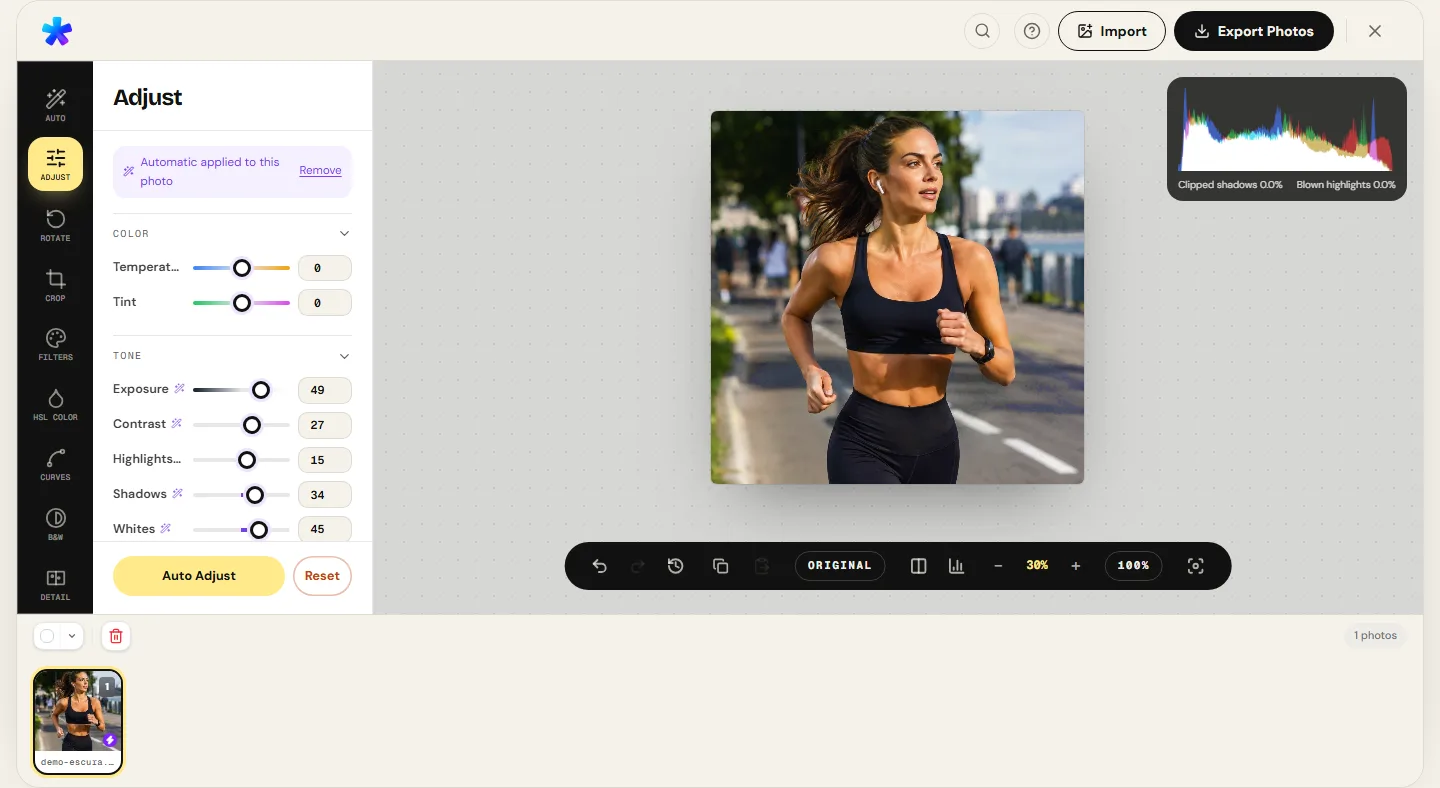
3. The Two Orthogonal Axes: Temperature (Kelvin) and Tint
Color balance cannot be reliably solved using a single linear slider. Natural and artificial light distributions fluctuate across a two-dimensional orthogonal color coordinate plane:
Temperature Axis (Blue – Amber)
Directly traverses the path of the Planckian Locus. Shifting the slider toward amber injects warm tones into the scene (correcting chilly blue shadows or overcast skies); sliding toward blue cools the frame (correcting heavy yellow indoor tungsten lighting).
Tint Axis (Green – Magenta)
Runs strictly perpendicular to the Planckian Locus. It is indispensable for correcting non-incandescent light sources that deviate from blackbody physics — such as commercial fluorescent ceiling tubes (which emit unappealing green phosphor spikes) or green-tinted automotive glass.
4. The Photographic Kelvin Spectrum: From Candlelight to Open Sky
Recognizing the baseline color values of natural and artificial light sources is essential for diagnosing color discrepancies:
- 1,800 K – 2,000 K: Open candle flames and kerosene lanterns (deep amber-red glow).
- 2,700 K – 3,000 K: Traditional domestic incandescent bulbs and halogen tungsten lighting.
- 4,000 K – 4,500 K: Early morning golden hour, late afternoon warmth, and metal halide lamps.
- 5,500 K – 5,600 K: Direct solar noon daylight and standard electronic studio flashes (the global baseline standard for neutral white).
- 6,500 K: Diffuse daylight under dense overcast cloud cover (sRGB D65 display standard).
- 7,500 K – 9,000 K: Open shadow on cloudless blue sky days (illuminated solely by scattered skylight).
- 10,000 K+: Deep twilight blue hour in high alpine altitudes.
5. Step-by-Step: Calibrating White Balance in PhotoEditor.sbs
Follow these steps to dial in color accuracy inside PhotoEditor.sbs within seconds:
Step 1: Open Your Photograph
Navigate to the editor workspace and import your photograph containing an unnatural color cast.
Step 2: Access the Adjust Photo Panel
Select the Adjust Photo tool. You will find intuitive Temperature and Tint sliders coupled directly to a real-time RGB histogram.
Step 3: Identify a Real-World Neutral Element
Locate an object in your scene that was physically neutral white or gray: a white cotton t-shirt, a concrete pavement slab, clouds, or a sheet of paper.
Step 4: Balance Temperature and Tint Sliders
If the scene is overly yellow, slide Temperature toward blue until the neutral target loses its amber contamination. If skin tones appear sickly greenish due to office fluorescent fixtures, push the Tint slider toward magenta until healthy human skin tones are restored.
6. Reference Table: Ambient Light Sources and Color Shifts
The table below provides a quick-lookup diagnostic guide pairing ambient light environments with their typical Kelvin ranges and correction offsets:
| Light Environment | Typical Color Temp (K) | Dominant Perceived Cast | Recommended Correction Strategy |
|---|---|---|---|
| Candlelight / Fireplace | 1,850 K – 2,000 K | Heavy reddish amber | Cool significantly (-40 to -60 slider offset) for neutral tones. |
| Domestic Incandescent | 2,700 K – 3,200 K | Warm orange-yellow | Cool moderately (-25 to -45 slider offset). |
| Fluorescent Tube Fixtures | 4,000 K – 5,000 K | Muddy dull green spike | Add Tint compensation (+15 to +30 Magenta). |
| Direct Midday Sunlight | 5,500 K | Neutral reference standard | Minimal adjustment needed (keep temperature near zero). |
| Overcast / Cloudy Sky | 6,500 K – 7,000 K | Cool soft blue tint | Warm subtly (+10 to +20 Amber) to bring warmth. |
| Open Shade under Blue Sky | 8,000 K – 9,500 K | Deep cold blue shadows | Warm significantly (+30 to +55 Amber). |
7. Using the Live RGB Histogram to Find True Neutrals
Because the human eye rapidly adapts to ambient monitor lighting, subjective visual evaluation can become deceptive during prolonged editing sessions. To ensure technical precision, monitor the real-time RGB triple histogram inside the editor panel.
When an area representing neutral gray or white is selected, the Red, Green, and Blue distribution peaks should align over the identical horizontal value. If the Red peak sits farther right than Green and Blue, the image remains too warm; if the Blue curve leads, the image is too cool.
Honest Technical Boundary Note
PhotoEditor.sbs performs mathematical color temperature and tint rebalancing on image pixel values in browser memory. This calibration corrects color data stored within the file itself, but does not calibrate your physical hardware display monitor or replace end-to-end ICC color management profiles for commercial press printing.
Adjust Temperature and White Balance Now
Adjust Temperature and White Balance Now8. Frequently Asked Questions
Frequently asked questions
What is white balance in digital photography?
It is the process of adjusting the color balance in an image so that objects appearing white or neutral gray in physical reality render accurately without unwanted yellow, blue, or green color casts.
Why do photos taken under fluorescent lights often look green?
Unlike natural sunlight or incandescent bulbs that emit a continuous thermal spectrum, fluorescent bulbs rely on gas excitation and phosphors that produce discrete spectral spikes in green and cyan, requiring Tint correction.
What is the difference between Color Temperature and Tint?
Temperature controls the linear warm-to-cool balance between yellow/amber and blue along the Kelvin scale. Tint operates perpendicularly, balancing between green and magenta.
Does PhotoEditor.sbs charge any fees to calibrate white balance?
No. PhotoEditor.sbs is 100% free with no subscription tiers, no usage caps, and no watermarks placed on exported photographs.
Can white balance be adjusted creatively instead of strictly neutral?
Yes. While commercial product photography demands technical neutrality, artistic landscape and portrait work frequently benefits from warmer golden tones to convey emotion and comfort.
Are my photos transmitted to a server during color adjustment?
No. All channel matrix calculations and color temperature adjustments happen entirely inside your local browser memory via Web Workers, ensuring privacy.
What image formats can I save after correcting white balance?
You can save your calibrated photos in high-quality JPEG or lossless PNG, as well as in WebP format when the browser supports Canvas WebP encoding.
What is an 18% gray card and why is it useful?
It is a calibrated physical reference card featuring 18% neutral spectral reflectance. Photographing it in scene lighting gives you a clean target to align R, G, and B channel balance in the editor.